
Step by step
1. How the rules work
Every rule starts as an organization default. Any parts list can override it, one field at a time. When Quote Watch checks a line, it uses the list's setting first, then the organization's.
Price rises under your limit are fixed for you. Bigger ones come to you as alerts. Won and lost quotes are never touched.
2. Set your margin defaults
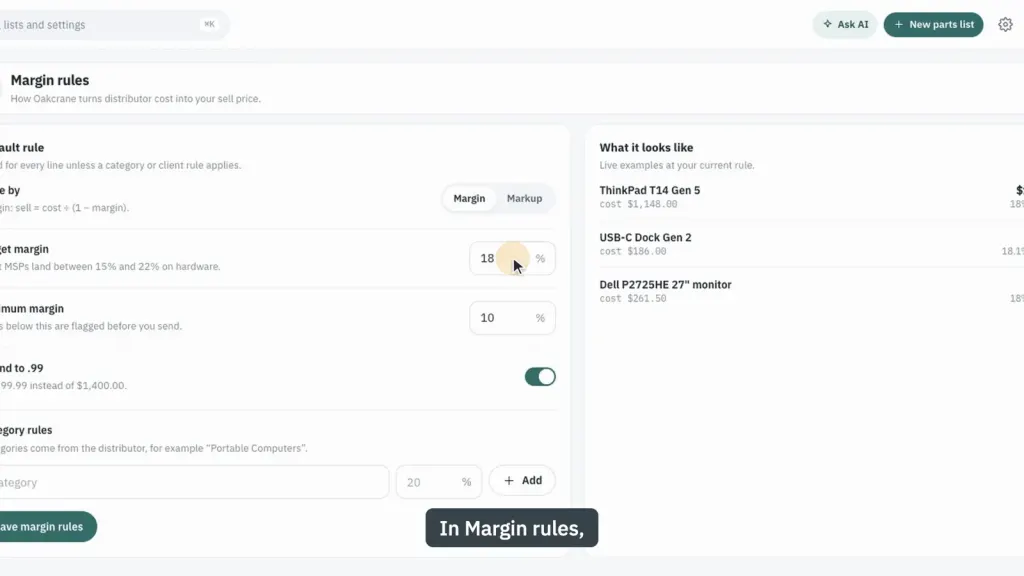
Go to Settings, then Margin rules. Under Default rule:
- Price by: Margin or Markup.
- Target margin: what new and re-priced lines aim for.
- Minimum margin: Quote Watch flags a line when a cost rise takes it under this.
Click Save margin rules.
3. Turn on automatic fixes for the organization
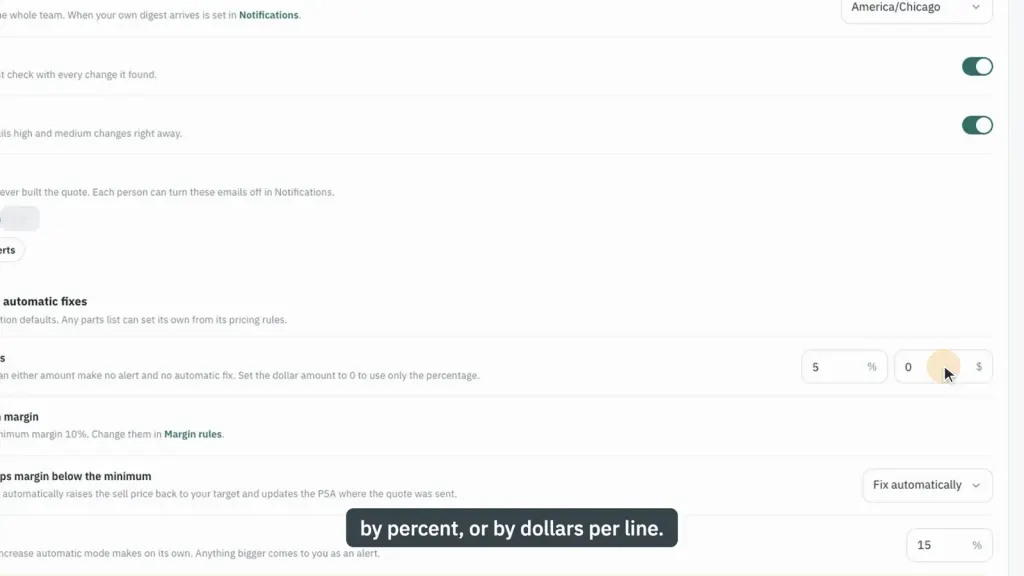
Go to Settings, then Quote Watch. Under Small changes and automatic fixes:
- When a cost rise drops margin below the minimum: choose Alert only or Fix automatically. Fix automatically raises the sell price back to your target and updates the PSA where the quote was sent.
- Automatic fix limit: the biggest sell price increase automatic mode makes on its own. It is 15% by default. Anything bigger comes to you as an alert.
- Ignore small changes: cost moves smaller than a percent, or a dollar amount per line, make no alert and no automatic fix. Set the dollar amount to 0 to use only the percentage.
4. Save and confirm
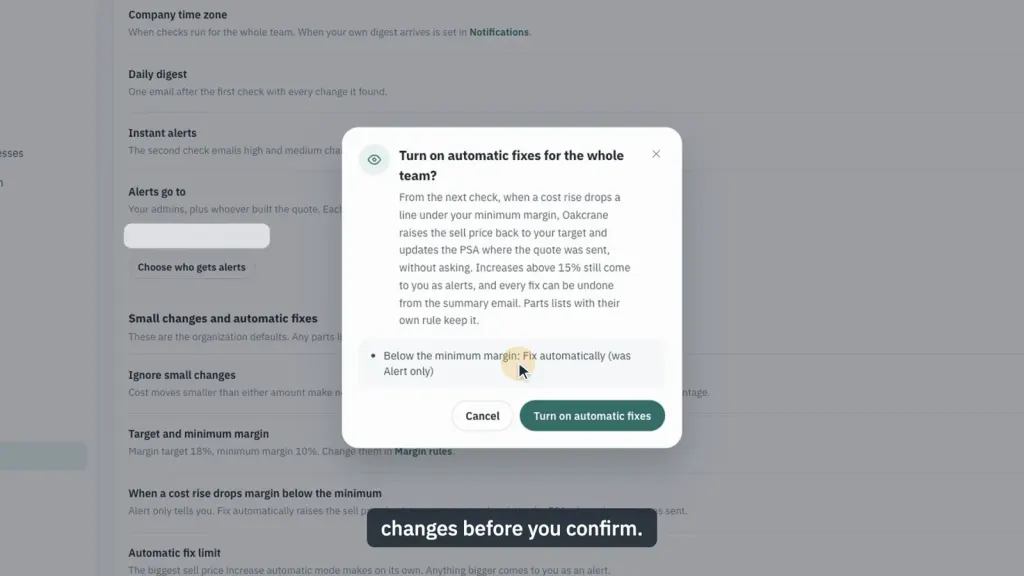
Click Save. The dialog Turn on automatic fixes for the whole team? lists each change, for example "Below the minimum margin: Fix automatically (was Alert only)". It applies from the next check, and parts lists with their own rule keep it.
Click Turn on automatic fixes to confirm, or Cancel.
5. Set rules for one parts list
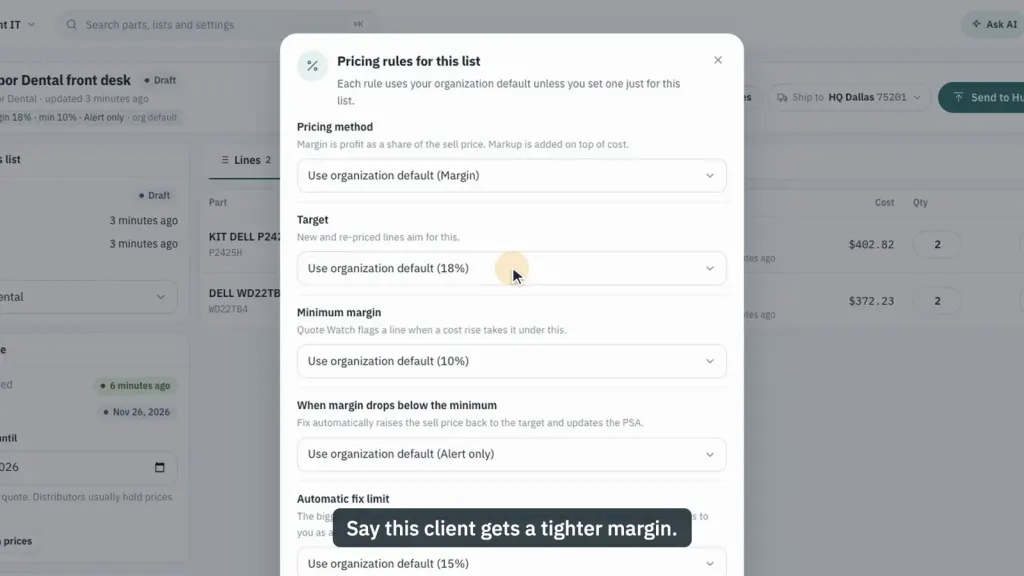
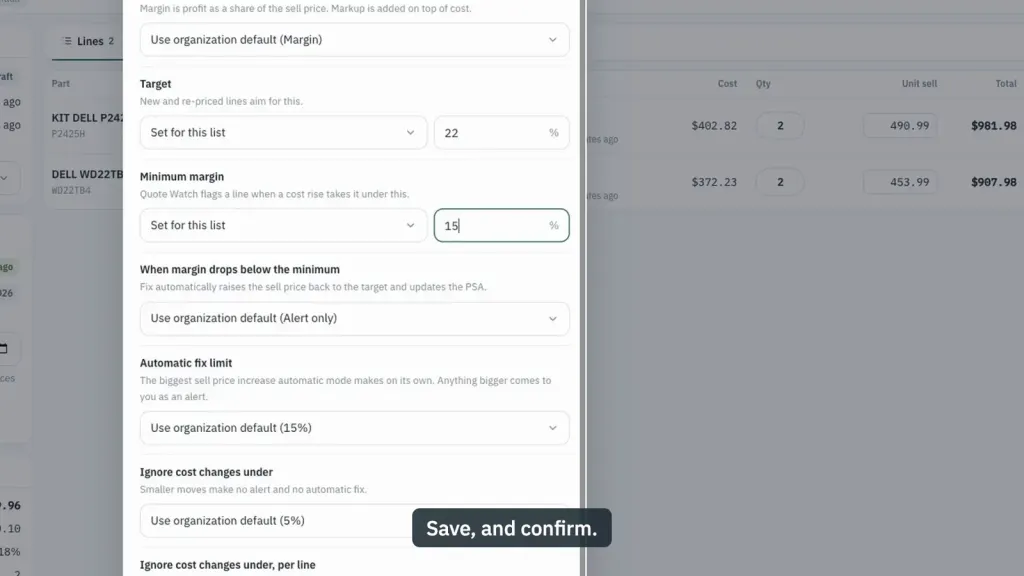
Open a parts list. Under its name is a pricing rules chip, such as "Margin 18% · min 10% · Alert only · org default". Click it to open Pricing rules for this list.
Each rule shows Use organization default with the current value. To override one, switch it to Set for this list and type the value. For example, give a client a 22% target and a 15% minimum, and leave everything else on the default.
6. Save the list rules
Click Save. The dialog Save pricing rules for this list? lists the changes. Click Save rules, or Turn on automatic fixes if you turned it on for this list.
The rules apply from the next check. Prices already on the list stay as they are. The chip now says partly custom or custom for this list.
7. When it fixes a line
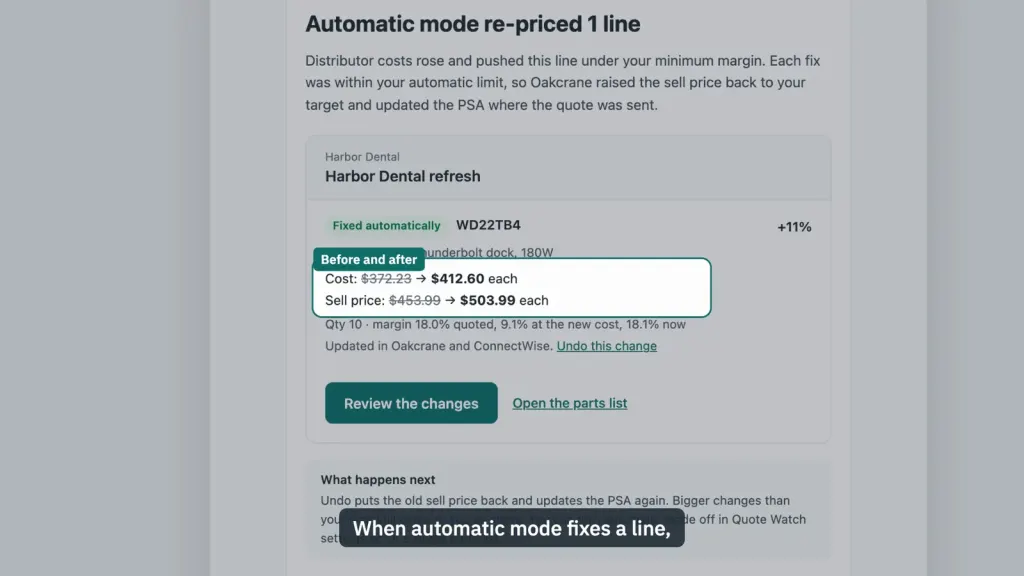
When automatic mode re-prices a line, it updates your PSA where the quote was sent and emails a summary to the people who get alerts. The email shows the cost and sell price before and after, and the margin.
Every change has an Undo this change link. Undo puts the old sell price back and updates the PSA again.
Tips
- Automatic mode only raises prices. A cost that drops never lowers a price.
- Won, lost and closed quotes are never touched.
- Start with a small fix limit, such as 5% to 10%, and raise it once you trust the results.
Questions
Will Oakcrane change my PSA without asking?
Only when you turn on Fix automatically. Then it updates the PSA record where the quote was sent, emails you each change, and gives you an undo link.
What happens if the price rise is bigger than my limit?
Oakcrane does not change it. It comes to you as a normal Quote Watch alert with a suggested fix.
Can I use automatic mode for some clients only?
Yes. Leave the organization on Alert only and turn on Fix automatically in the pricing rules of the parts lists you choose. Or the other way round.
Transcript
0:03Quote Watch finds a cost rise that cuts your margin.
0:07Normally it waits for you to fix it.
0:09Automatic mode can fix it for you, inside limits you set.
0:12Every rule starts as an organization default, and any parts list can override it, one field at a time.
0:19When Quote Watch checks a line, it uses the list's setting first, then the organization's.
0:25Price rises under your limit are fixed for you.
0:27Bigger ones come to you as alerts.
0:30And closed quotes are never touched.
0:36Start with your organization defaults.
0:38In Margin rules, choose margin or markup, your target, and your minimum margin.
0:44Then open Quote Watch settings.
0:46Choose what happens when a cost rise drops a line below the minimum: alert only, or fix automatically.
0:54Fix automatically raises the sell price back to your target.
0:58The automatic fix limit caps that rise at 15% % by default.
1:02Anything bigger comes to you as an alert.
1:05To skip the noise, ignore small cost changes, by percent, or by dollars per line.
1:12Save, and Oakcrane shows exactly what changes before you confirm.
1:21Now open a parts list and click Pricing rules.
1:25Each rule uses your organization default, unless you set one just for this list.
1:31Say this client gets a tighter margin.
1:33Set the target and minimum for this list only, and keep everything else from the organization.
1:41Save, and confirm.
1:43The rules apply from the next check.
1:46Prices already on the list stay as they are.
1:53When automatic mode fixes a line, it updates your PSA where the quote was sent, and emails you a before and after summary.
2:02Every line has an Undo.
2:05Won and lost quotes are never touched.
2:07They stay exactly as they closed.
2:12That's Next, see how Oakcrane and your PSA stay in sync, both ways.


