
Step by step
1. Set when quotes are checked
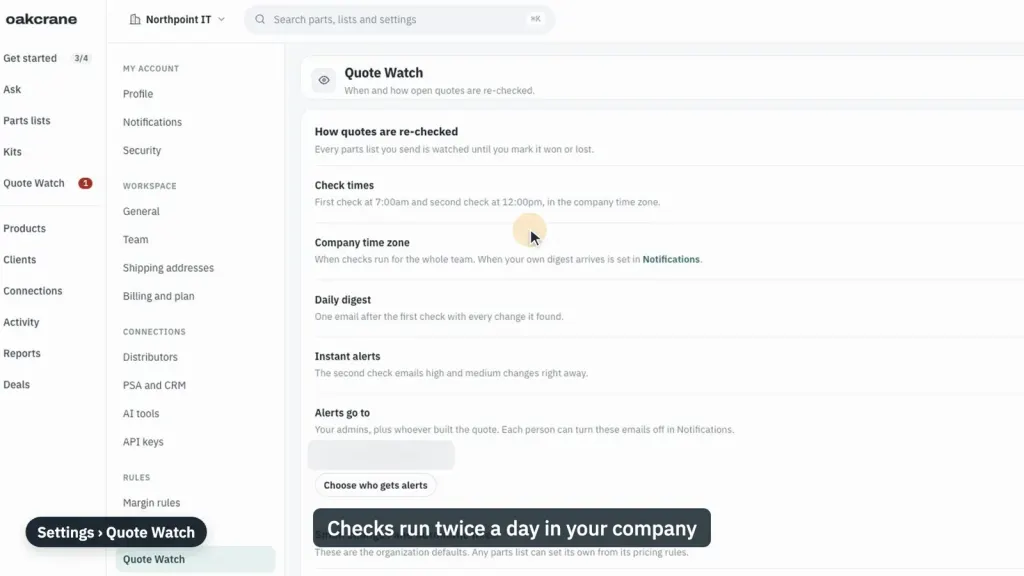
Go to Settings, then Quote Watch under Rules.
- Check times: pick the first check. The second check runs five hours later, for example 7:00am and 12:00pm.
- Company time zone: checks run in this time zone.
- Daily digest: one email after the first check with every change it found.
- Instant alerts: the second check emails high and medium changes right away.
- Alerts go to: by default your admins and whoever built the quote. Click Choose who gets alerts to change it.
Under Ignore small changes, set a percent or a dollar amount per line that should not raise an alert. Click Save and confirm the changes in the dialog.
2. Review alerts
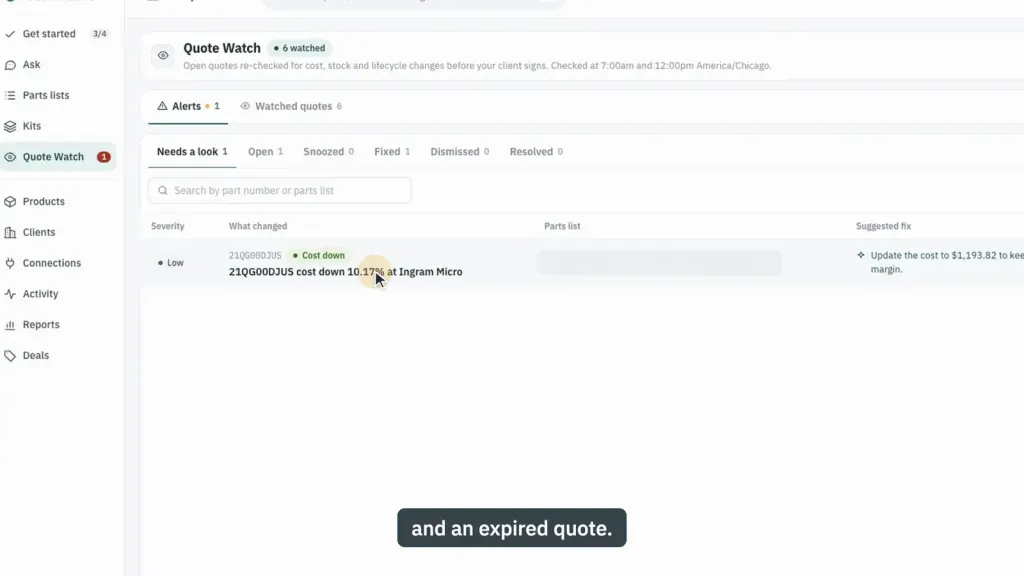
Open Quote Watch in the sidebar. The Alerts tab lists every change, filtered by Needs a look, Open, Snoozed, Fixed, Dismissed and Resolved.
Alert types are Cost up, Cost down, Margin below minimum, Out of stock, Backordered, End of life and Quote expired. Each row shows the severity, what changed, the parts list it is on and a suggested fix.
Click Re-check now to ask your distributors again right away. You confirm first, and a re-check sends no email and changes nothing in your PSA.
3. Read the alert email
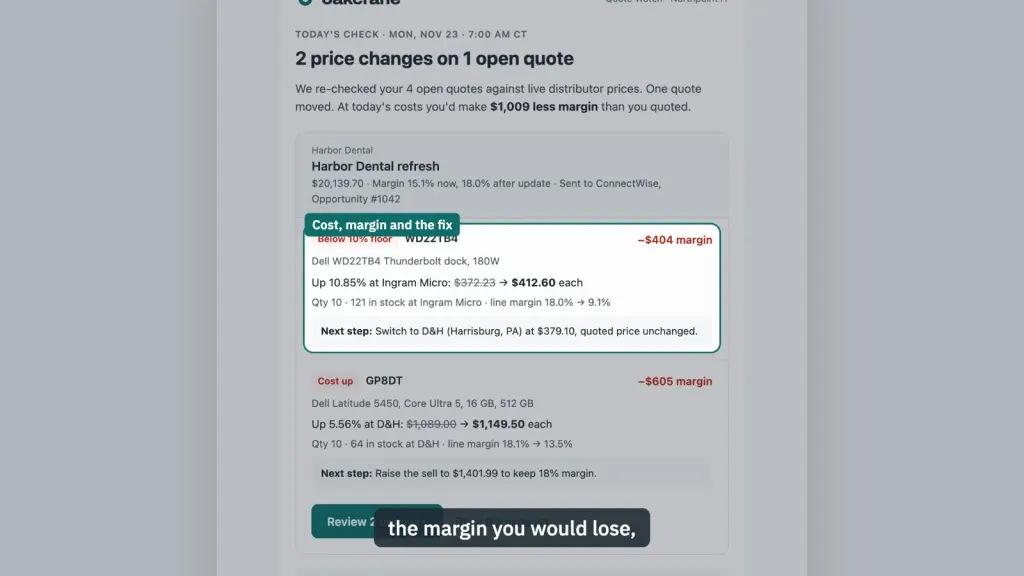
The daily digest arrives after the first check. For each changed line it shows the quoted and current cost, the stock, the margin you would lose and a Next step, such as switching to another distributor at the quoted price. Click the review button, such as Review 2 changes, to open them in Oakcrane.
4. Apply the fix
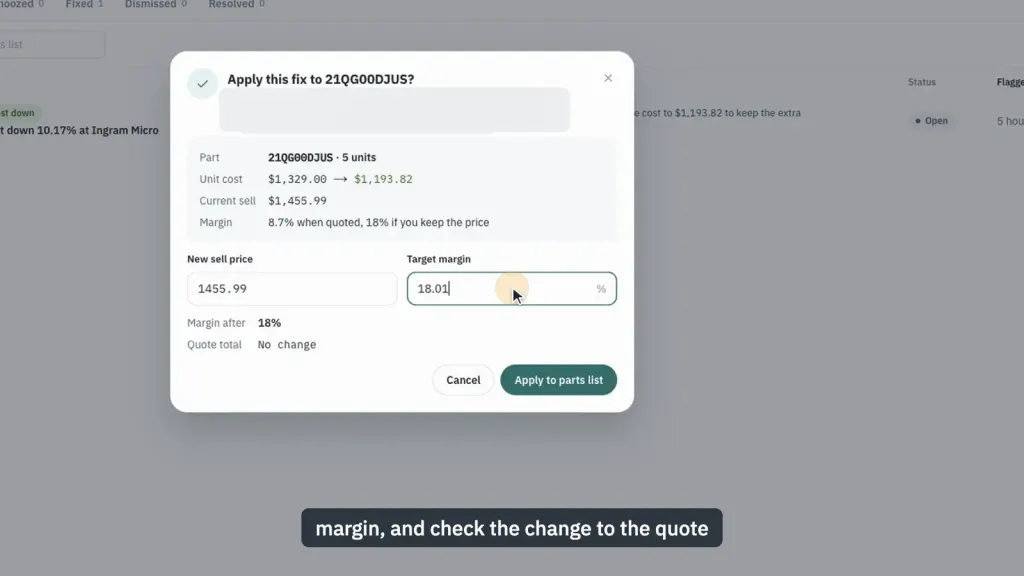
On the alert row, open the menu and choose Apply fix. The dialog Apply this fix to the part number shows:
- the unit cost, old and new
- the current sell price
- your margin when quoted, and your margin if you keep the price
Type a New sell price or a Target margin. Oakcrane shows the margin after and the change to the quote total. Click Apply to parts list. This changes the line in Oakcrane only.
5. Update the PSA record
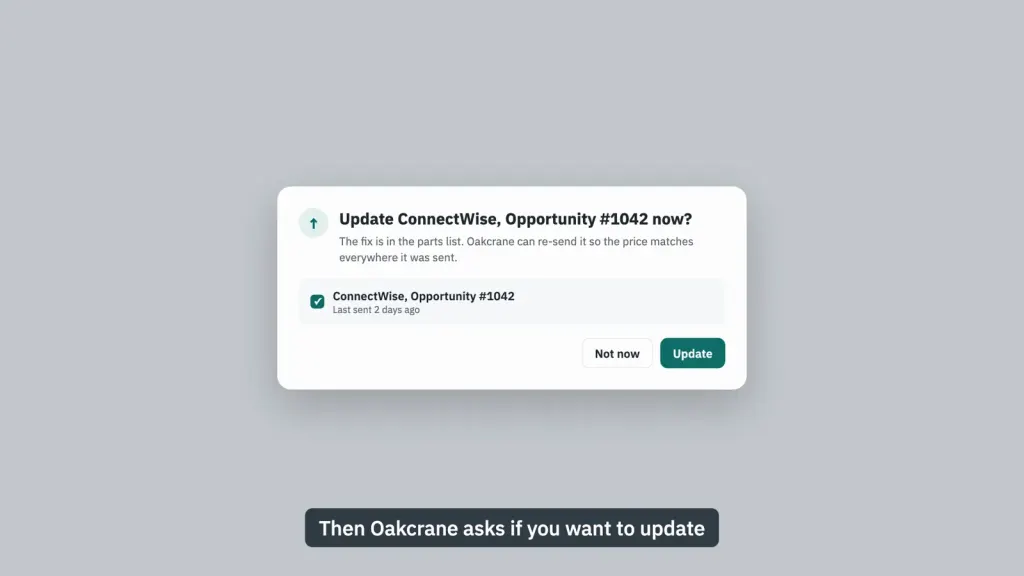
Next, Oakcrane asks if you want to update where the list was sent, for example Update ConnectWise opportunity #1042 now? Tick the records and click Update. Oakcrane re-sends the list and updates the matching lines in place.
Choose Not now to leave your PSA as it is. You can send the list later.
6. Watch a list without sending it
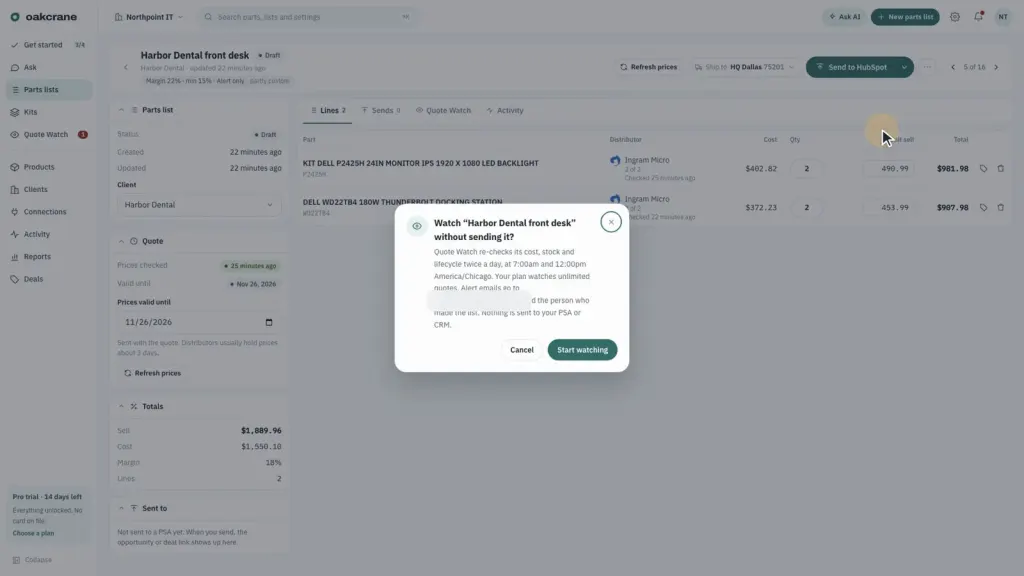
Not ready to send yet? On any parts list, open the More menu (the three dots in the header) and choose Watch without sending. You can also use the button on the list's Quote Watch tab.
Confirm with Start watching. Quote Watch tracks the list from the next check, and nothing goes to your PSA.
7. Close quotes as won or lost
When a deal closes, open the quote under Quote Watch, then Watched quotes, and choose Mark won or Mark lost. If your PSA is linked, two-way sync can mark it for you.
Closed quotes stop being watched and their open alerts are resolved. Use the Won and Lost filters on the Watched quotes tab to find them.
Tips
- Set a minimum margin under Settings, Margin rules. Quote Watch raises Margin below minimum when a cost rise takes a line under it.
- Snooze an alert you want to deal with later. It comes back if the change is still there.
- Want small cost rises fixed for you? Turn on automatic mode.
Questions
How often does Quote Watch check prices?
Twice a day, five hours apart, in your company time zone. You pick the time of the first check. You can also click Re-check now at any time.
Which distributors does it check?
The distributors you have connected: Ingram Micro, TD SYNNEX and D&H. It checks live cost, stock and lifecycle on your own accounts.
Does applying a fix change my PSA?
Not on its own. Apply to parts list changes the line in Oakcrane. Oakcrane then asks if you want to update the PSA record, and you choose.
When does Quote Watch stop watching a quote?
When you mark it won or lost, or when your linked PSA closes it. Open alerts on that quote are resolved.
Transcript
0:02You send a quote today.
0:04Your client signs next week.
0:07In between, costs move, stock runs out, and parts reach end of life.
0:12Quote Watch keeps an eye on every quote you send.
0:15Twice a day, it asks your distributors for live cost, stock and life cycle, and compares them with what you quoted.
0:22When something changes, you get an alert with a suggested fix, before your client signs.
0:30Checks run twice a day in your company time zone.
0:34In Quote Watch settings, you pick the first check time, and the second runs five hours later.
0:40You also choose which small cost changes to ignore, and who gets the alert emails.
0:50Alerts cover a cost going up or down, margin falling below your minimum, out of stock, back ordered, end of life, and an expired quote.
0:59Each alert shows what changed, the parts list it's on, and a suggested fix.
1:05Re-check now asks your distributors again right away, with no email.
1:19You get an email too.
1:21The daily digest arrives after the first check, and the second check sends high and medium changes right away.
1:27It shows the quoted and current cost, the margin you would lose, and what to do about it.
1:36To act on it, open the alert and click Apply fix.
1:43Oakcrane shows the new cost, your margin when quoted, and your margin if you keep the price.
1:49Set a new sell price or a target margin, and check the change to the quote total.
1:58Apply to parts list changes the line in Oakcrane.
2:02Your PSA stays as it is until you choose.
2:05Then Oakcrane asks if you want to update where this was sent.
2:09Pick the records, click Update, and it re-sends the list and updates the matching lines in place.
2:18Not ready to send yet?
2:20On any parts list, choose Watch without sending.
2:23Quote Watch tracks it, and nothing goes to your PSA.
2:35When a deal closes, mark it won or lost, or let your PSA sync do it for you.
2:42Closed quotes stop being watched, and their open alerts are resolved.
2:52That's Quote Watch.
2:54Next, let Oakcrane fix small cost rises for you, with automatic mode.


