
Step by step
1. Choose margin or markup
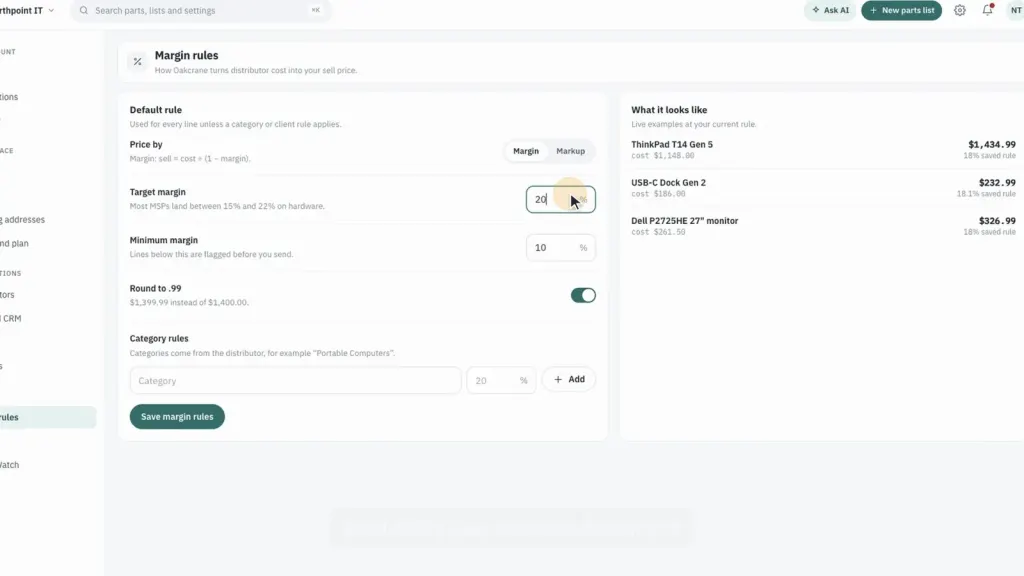
Open Settings, then Margin rules under Rules. Under Price by, choose Margin or Markup.
- Margin is a share of the sell price: sell = cost ÷ (1 − margin).
- Markup is added on top of cost: sell = cost × (1 + markup).
So a 20% markup gives you less than 20% margin. You need the Change margin rules permission to edit this page.
2. Set your target and minimum margin
Type your Target margin. Most MSPs land between 15% and 22% on hardware. The What it looks like panel on the right updates as you type, so you can see real sell prices before you save.
Minimum margin is your floor. If a cost rises on a sent quote and takes a line under the floor, Quote Watch raises a high alert.
3. Round prices and add category rules
Turn on Round to .99 to show $1,399.99 instead of $1,400.00.
Under Category rules, type a category name and a percent, then click Add. Categories come from the distributor, for example "Portable Computers". A category rule overrides the default for lines in that category.
4. Save your margin rules
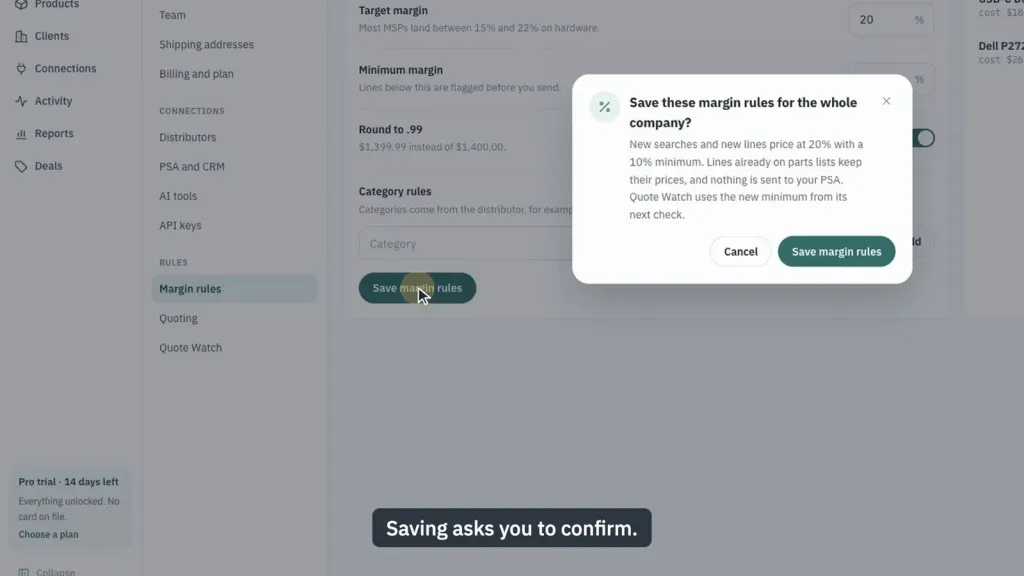
Click Save margin rules. A confirm dialog tells you what changes: new searches and new lines use the new rule, lines already on parts lists keep their prices, and nothing is sent to your PSA. Quote Watch uses the new minimum from its next check.
Click Save margin rules in the dialog to apply it, or Cancel to keep what you had.
5. Pick when quotes are checked
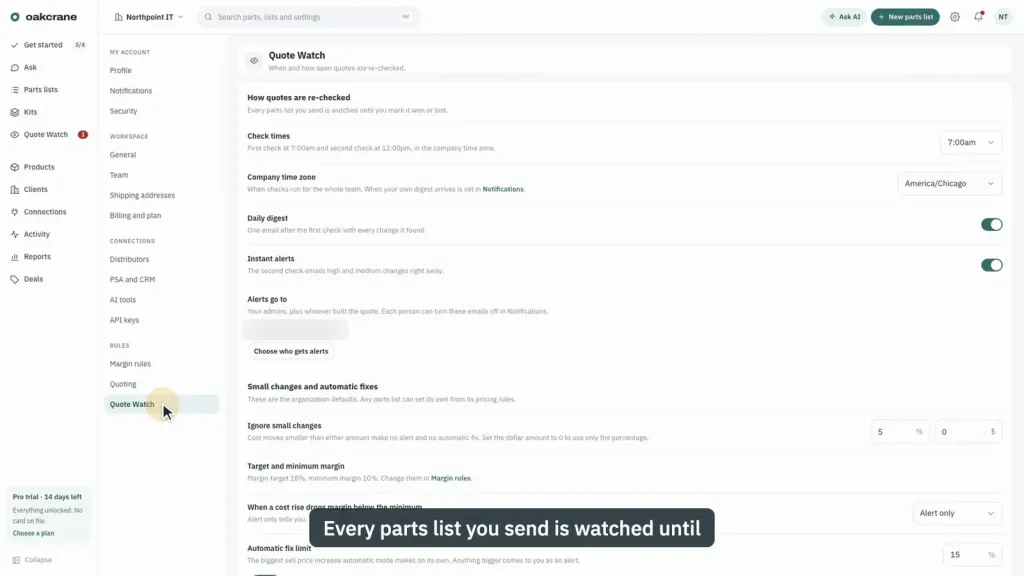
Open Settings, then Quote Watch. Every parts list you send is watched until you mark it won or lost.
Quotes are checked twice a day. Under Check times, pick the time of the first check, and the second check moves with it. The default is 7:00am and 12:00pm. Both run in the Company time zone, for the whole team.
6. Choose digest, alerts and who gets them
- Daily digest sends one email after the first check with every change it found.
- Instant alerts sends high and medium changes from the second check right away.
Alerts go to your admins plus whoever built the quote. To send them to a set list instead, click Choose who gets alerts and add up to 20 emails. Click Use default to go back. Each person can still turn these emails off for themselves in Notifications.
7. Ignore small changes
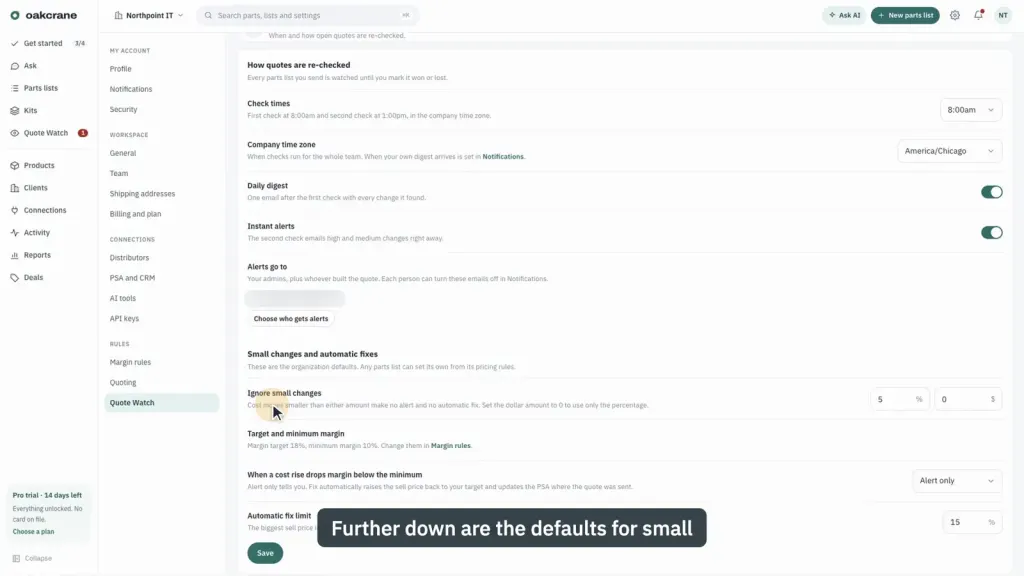
Under Small changes and automatic fixes are the organization defaults for every watched quote.
Ignore small changes has two boxes: a percent and a dollar amount per line. A cost move smaller than either one makes no alert and no automatic fix. The percent can be 0.5% to 50% (5% by default). Set the dollar amount to 0 to use only the percent.
Target and minimum margin shows the values from Margin rules, with a link to change them.
8. Alert only, or fix automatically
When a cost rise drops margin below the minimum has two choices:
- Alert only tells you and suggests a fix. This is the default.
- Fix automatically raises the sell price back to your target and updates the PSA where the quote was sent, without asking.
Automatic fix limit is the biggest sell price increase automatic mode makes on its own, from 0.5% to 100% (15% by default). Anything bigger comes to you as an alert.
Each automatic fix is emailed to the people who get alerts, with an undo link. Won, lost and closed quotes are never touched, and a cost that drops never lowers a price.
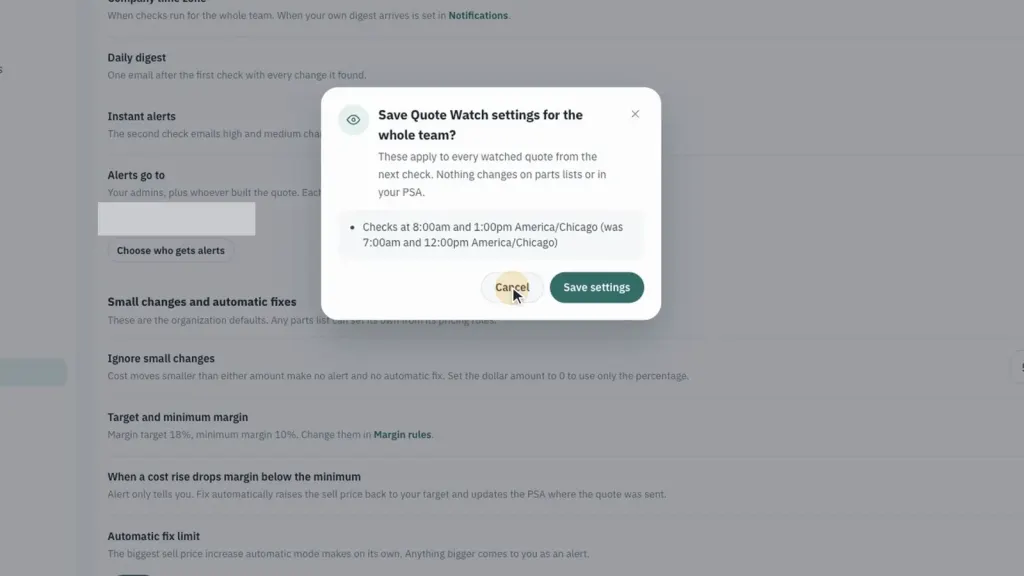
9. Save Quote Watch settings
Click Save. The confirm dialog lists exactly what changes for the whole team, for example "Checks at 8:00am and 1:00pm America/Chicago (was 7:00am and 12:00pm)". Settings apply from the next check.
If you're switching to Fix automatically, the dialog is titled Turn on automatic fixes for the whole team? and the button reads Turn on automatic fixes. Parts lists with their own rule keep it.
10. Set different rules for one parts list
Any parts list can override the organization defaults. Open the parts list and click the rule chip under its title, for example "Margin 18% · min 10% · Alert only · org default". This opens Pricing rules for this list.
For each rule, choose Use organization default or Set for this list, then type the value. You can override:
- Pricing method (margin or markup)
- Target
- Minimum margin
- When margin drops below the minimum (Alert only or Fix automatically)
- Automatic fix limit
- Ignore cost changes under, as a percent
- Ignore cost changes under, per line in dollars
Click Save and confirm. The new rules apply to that list from the next check, and prices already on the list stay as they are. The chip then shows "custom for this list" or "partly custom".
Tips
- Start with Alert only for a couple of weeks. Once the suggested fixes look right, switch to Fix automatically.
- Keep the automatic fix limit low, around 10% to 15%, so big jumps still come to you.
- Use a dollar threshold if small accessories keep triggering alerts. A $10 per line floor ignores noise on cables and adapters.
- Turn on automatic fixes for one large project quote first by setting it on that parts list only.
Questions
Does changing my margin rules reprice quotes I already sent?
No. New searches and new lines use the new rule. Lines already on parts lists keep their prices, and nothing is sent to your PSA.
What does automatic mode change in my PSA?
When a cost rise drops a line under your minimum margin and the fix is within your automatic fix limit, Oakcrane raises the sell price back to your target and updates the quote where it was sent. Each fix is emailed with an undo link.
Will automatic mode ever lower a price?
No. A cost that drops never lowers a price, and won, lost and closed quotes are never touched.
Can one client's quotes use different rules?
Yes. Open that parts list, click the rule chip under its title and set the rules for that list. Everything else keeps using the organization defaults.
Transcript
0:03Two settings shape every price you see in Oakcrane.
0:06Margin rules turn distributor cost into your sell price.
0:10And Quote Watch decides when your sent quotes are checked again, and who hears about it when something changes.
0:18Start in Settings, under Margin rules.
0:21First, choose how you price: by margin, or by markup.
0:26Margin is a share of the sell price.
0:28Markup is added on top of cost.
0:31So a 20% % markup gives you less than 20% % margin.
0:35Set your target.
0:37Most MSPs land between 15% % and 22% % on hardware.
0:41The examples on the right update as you type.
0:45Minimum margin is your floor.
0:47Lines below it are flagged before you send.
0:49And if a cost rises on a sent quote and drops you under the floor, Quote Watch raises a high alert.
0:55You can round prices to 0 .99, and add category rules, like a different margin for portable computers.
1:03Saving asks you to confirm.
1:05New searches and new lines use the new rule, and lines already on parts lists keep their prices.
1:12We'll cancel, and keep our 18%.
1:14Now, Quote Watch.
1:22Every or lost.
1:24Quotes are checked twice a day.
1:26Pick the time of the first check, and the second moves with it.
1:29Both run in the company time zone, for the whole team.
1:35The daily digest sends one email after the first check, with every change it found.
1:41Instant alerts send high and medium changes from the second check, right away.
1:45Alerts go to your admins, plus whoever built the quote.
1:49To send them to a set list instead, click Choose who gets alerts, and add up to 20 emails.
2:00Further down are the defaults for small changes and automatic fixes.
2:04Cost moves smaller than this percent, or this dollar amount, make no alert and no fix.
2:10When a cost rise drops margin below your minimum, QuotWatch can just alert you, or fix it automatically, up to limit you set.
2:19Any parts list can set its own.
2:23Save shows exactly what changes for the whole team before it applies.
2:27We'll cancel and put the check time back.


