
Step by step
1. Open the HubSpot card
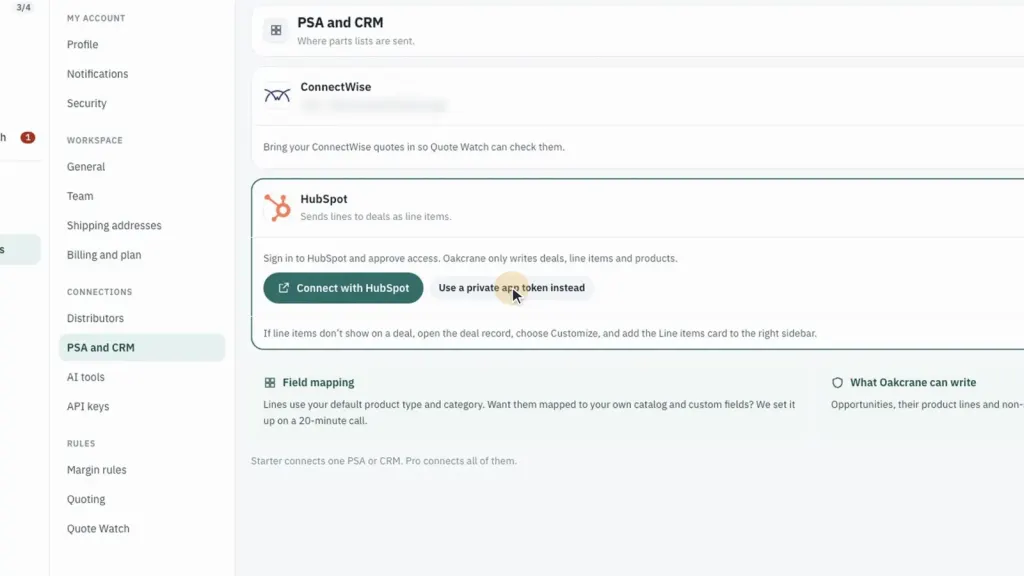
In Oakcrane, open Settings, then PSA and CRM under Connections. On the HubSpot card, click Connect.
The card opens with two options: Connect with HubSpot and Use a private app token instead.
2. Sign in and approve access
Click Connect with HubSpot. HubSpot asks you to sign in and pick your account, then shows what Oakcrane can access. Approve it.
You land back in Oakcrane with the message "HubSpot connected. Syncing your companies now." Your HubSpot companies show up in Clients within about a minute.
3. Or use a private app token
If your team prefers, click Use a private app token instead and paste a Private app access token. The private app needs CRM read and write scopes for companies, contacts, deals, line items and products.
Click Connect HubSpot, then confirm in the dialog.
4. Send a parts list to HubSpot
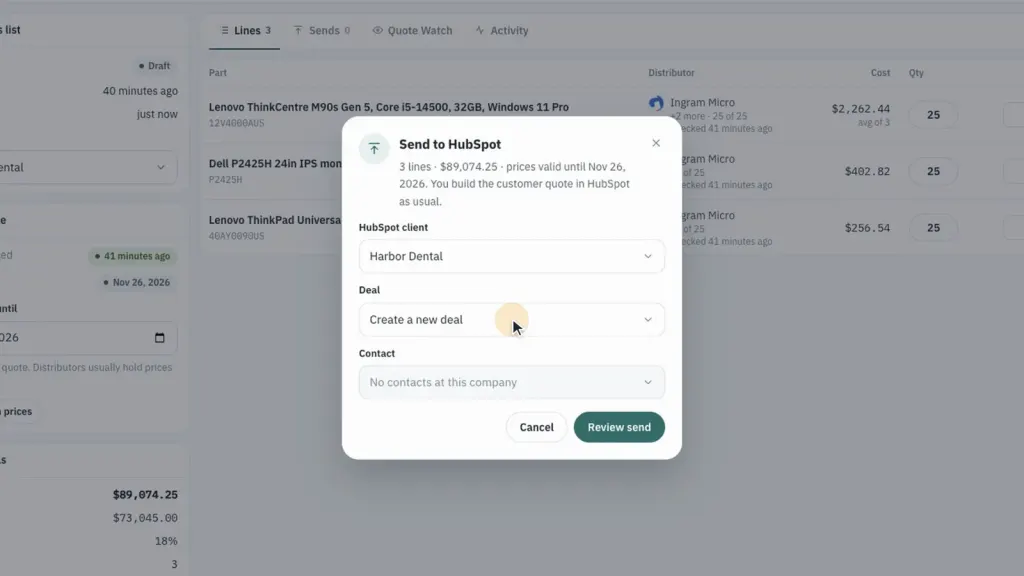
Open a parts list and click Send to HubSpot. Pick the HubSpot client (the company), then under Deal choose Create a new deal or one of its open deals. For a new deal you can also pick a Contact.
Click Review send.
5. Review and confirm
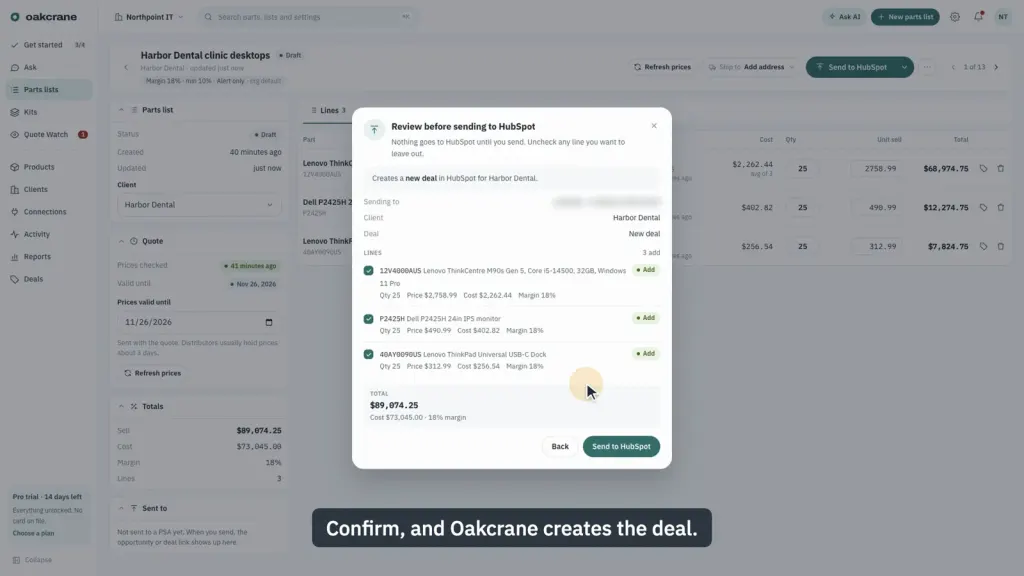
Review before sending to HubSpot shows exactly what will be written: the client, whether it's a new deal, and every line with quantity, price, cost and margin. Untick any line you want to leave out.
Click Send to HubSpot to confirm. Oakcrane creates the deal.
6. What lands in HubSpot
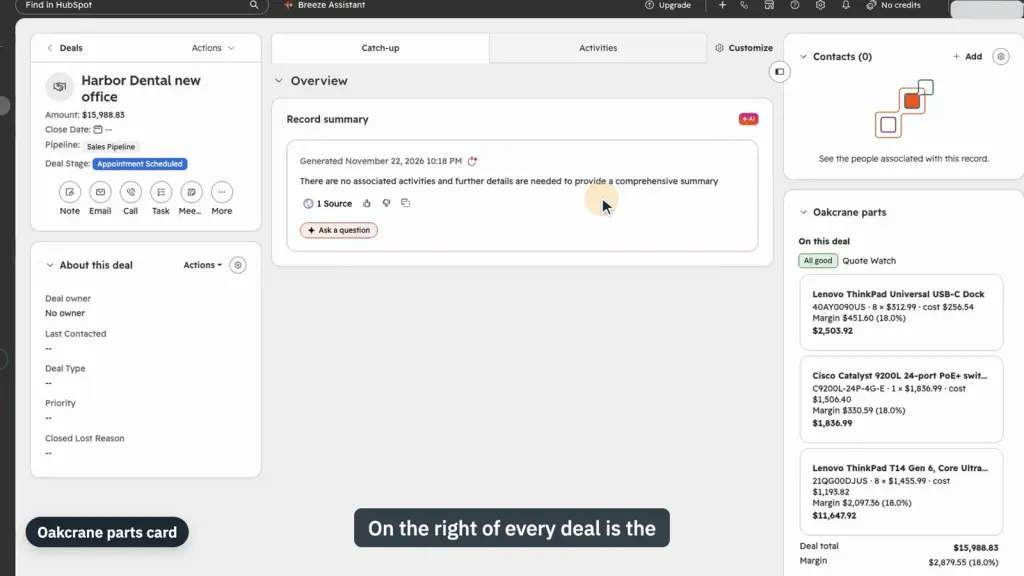
The deal gets the amount, and every line becomes a line item. The part number is the SKU, with the quantity, the price and the unit cost. Parts that aren't in your HubSpot product library yet are added as products.
If line items don't show on a deal, open the deal record, choose Customize, and add the Line items card to the right sidebar.
7. Use the Oakcrane parts card on a deal
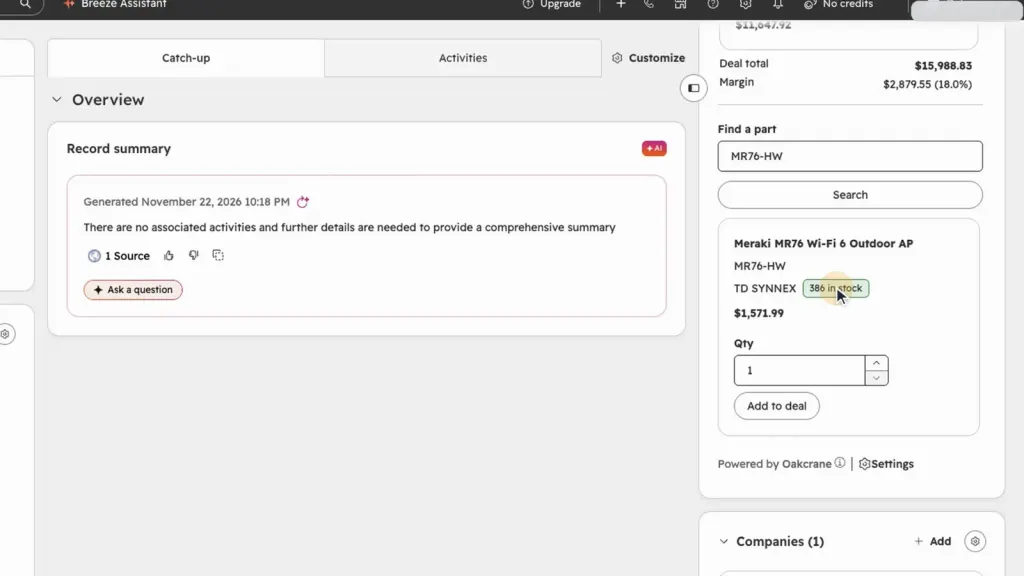
On the right of every deal is the Oakcrane parts card. Under On this deal it shows the deal's line items, the Deal total, your Margin, and whether Quote Watch is on (for example "All good").
8. Add a part from inside HubSpot
Type a part number or what you need into Find a part and click Search. Oakcrane checks your distributors and shows the best price and stock.
Set the Qty and click Add to deal. A summary shows the part, quantity, unit price and line total. Click Confirm. Oakcrane checks the price again with the distributor as it adds the line.
Tips
- Connect with HubSpot is the quickest route. Use a private app token only if your HubSpot admin prefers it.
- Lines use your default product settings. Want them mapped to your own catalog and custom fields? We set it up on a 20-minute call.
- The Starter plan connects one PSA or CRM. Pro connects all of them.
Questions
What does Oakcrane write to HubSpot?
Deals, line items and products for parts that aren't in your product library yet. It writes when you send a parts list, add a part from the card or apply a Quote Watch fix, and you confirm each time unless you turn on automatic mode.
Line items don't show on my deal. Did the send fail?
Probably not. Some deal layouts hide them. Open the deal record, choose Customize, and add the Line items card to the right sidebar.
Can I send to an existing deal instead of creating a new one?
Yes. When you send, pick the company, then choose one of its open deals under Deal instead of Create a new deal.
Does the parts card use live prices?
Yes. Search checks your connected distributors when you run it, and the price is checked again with the distributor when the line is added.
Transcript
0:02This video connects HubSpot to Oakcrane.
0:06Your parts lists become HubSpot deals with line items, and you get live distributor pricing right on the deal.
0:13Oakcrane reads your companies and contacts.
0:15It writes deals, line items and products, and only when you choose to.
0:22In Oakcrane, open Settings, then PSA and CRM.
0:27On the HubSpot card, choose Connect, then Connect with HubSpot.
0:36HubSpot asks you to sign in and pick your account, then shows what Oakcrane can access.
0:42Approve it, and you land back in Oakcrane, connected.
0:48Oakcrane syncs your HubSpot companies into Clients right away.
0:51If your team prefers, you can paste a private app token instead.
0:59Now send a parts list.
1:01Pick the HubSpot company, and choose a new deal or an existing one.
1:07Before anything is written, you see exactly what goes to HubSpot.
1:12Confirm, and Oakcrane creates the deal.
1:27In HubSpot, the deal has the amount, and every line is a line item.
1:32The part number is the SKU, with the quantity, the price and the unit cost.
1:40Parts that aren't in your product library yet are added as products.
1:47If line items don't show on a deal, choose Customize on the deal record, and add the Line items card.
1:58On the right of every deal is the Oakcrane parts card.
2:13It shows the deal's line another part?
2:15Search right in the card.
2:17Oakcrane checks your distributors, and shows the best price, and the stock.
2:26Set the quantity and choose Add to deal.
2:29You see the line total and confirm.
2:42That's HubSpot, connected.


