
Step by step
1. Open Find quotes on your PSA
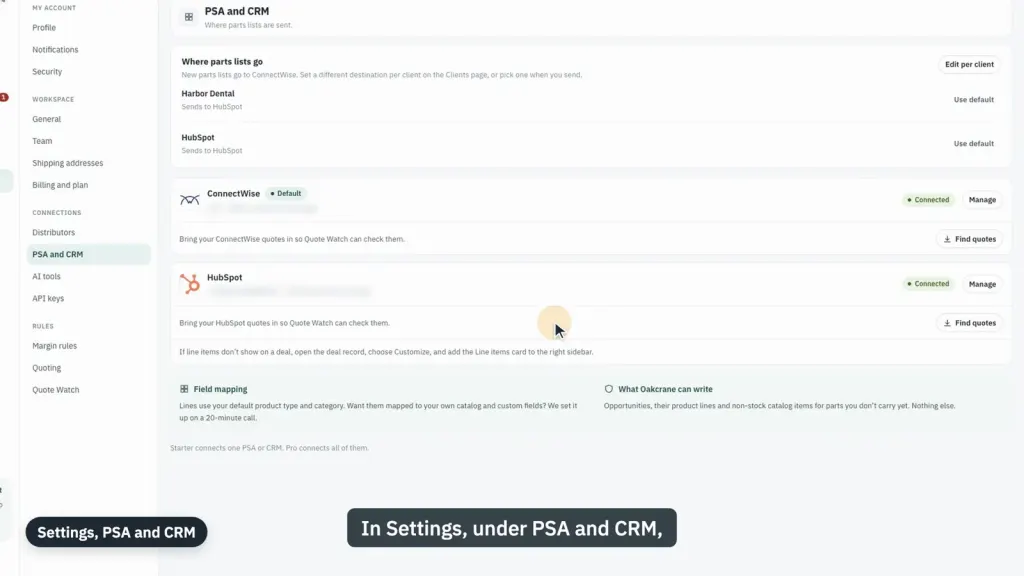
Go to Settings, then PSA and CRM under Connections. Each connected PSA or CRM has a Find quotes button.
Click Find quotes on the one you want to import from. This example uses HubSpot. ConnectWise works the same way.
2. Check what it found and pick a range
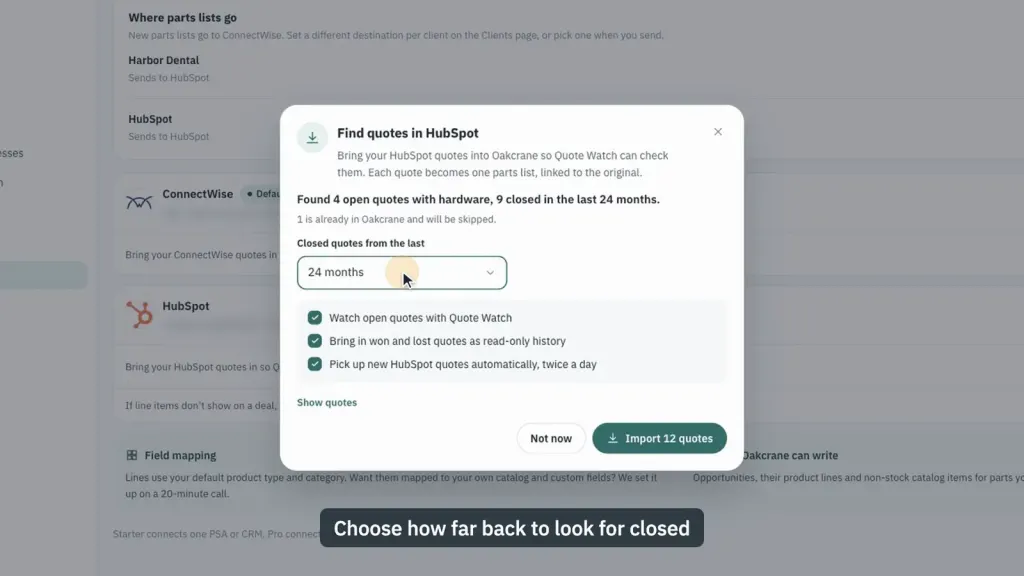
Oakcrane looks for quotes with hardware lines and tells you what it found before anything comes in, for example "Found 4 open quotes with hardware, 8 closed in the last 12 months." Quotes already in Oakcrane are counted and skipped.
Use Closed quotes from the last to choose how far back to look: 3, 6, 12 or 24 months.
3. Pick your options
Three options sit under the range:
- Watch open quotes with Quote Watch. Open quotes are re-checked for cost and stock.
- Bring in won and lost quotes as read-only history. Closed quotes come in for reference only.
- Pick up new HubSpot quotes automatically, twice a day. New quotes with hardware are imported at each Quote Watch check.
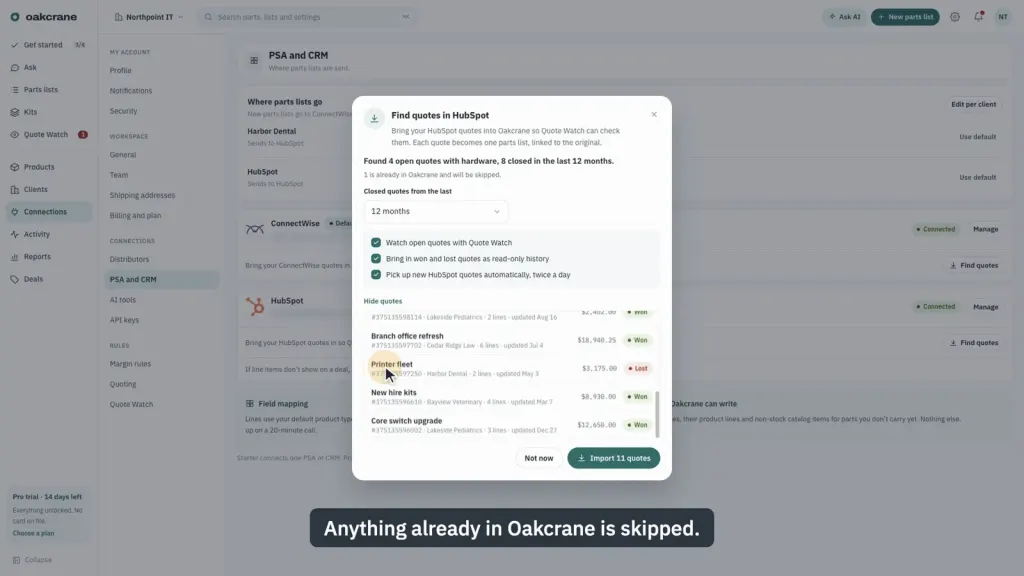
Click Show quotes to see every quote it found, with its client, line count, value and state. Anything already in Oakcrane is marked and skipped.
4. Import and confirm
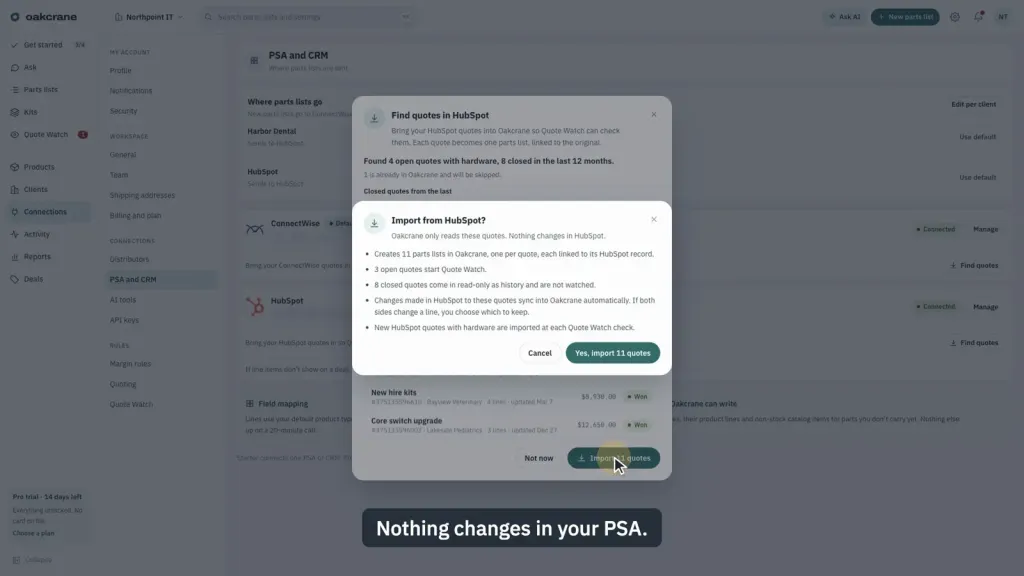
Click Import N quotes. A confirm dialog lists exactly what will happen: how many parts lists are created, how many open quotes start Quote Watch, and how many closed quotes come in as history. It also notes that later changes in your PSA sync into Oakcrane, and if both sides change a line you choose which to keep.
Click Yes, import N quotes to start, or Cancel to go back.
5. Let it run
Progress shows as it goes. You can click Close and keep importing and carry on working. The import keeps running.
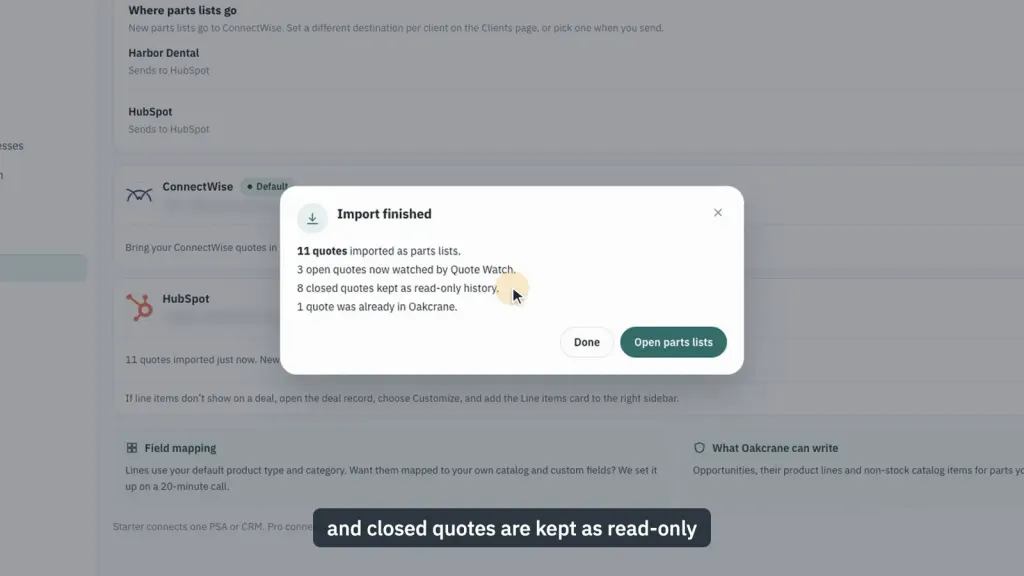
When it's done, Import finished shows how many quotes came in, how many are now watched, and how many were kept as history. Click Open parts lists to see them, or Done to close.
6. Find your imported lists
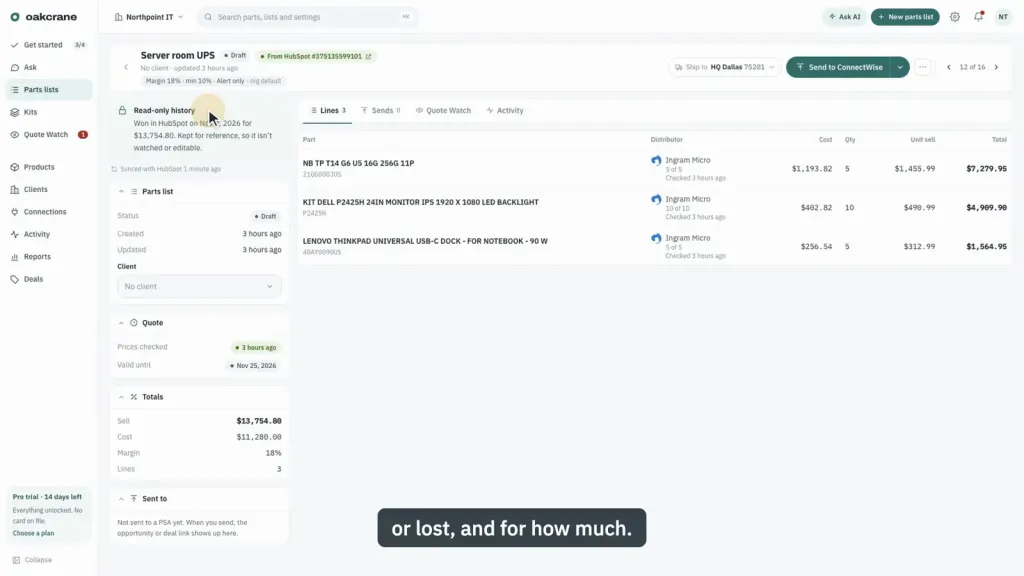
In Parts lists, each imported list shows where it came from. Open one, and the badge under its name (for example From HubSpot #375135600417) links straight back to the deal or opportunity.
A closed quote shows a Read-only history note with when it was won or lost and for how much. It isn't watched or editable. It's kept for reference.
Tips
- Start with 12 months of closed quotes. You can import again later with a longer range, and quotes already in Oakcrane are skipped.
- If HubSpot line items don't show on a deal, open the deal record, choose Customize, and add the Line items card to the right sidebar.
Questions
Does importing change anything in my PSA?
No. Oakcrane only reads your quotes during the import. Nothing is written back until you choose to send a parts list.
Which quotes come in?
Quotes with hardware lines. Open quotes come in as watched parts lists if you tick Watch open quotes. Won and lost quotes come in as read-only history if you tick that option.
What happens if I run the import twice?
Quotes already in Oakcrane are skipped, so you won't get duplicate parts lists.
Can I edit an imported closed quote?
No. Closed quotes are kept as read-only history. Build a new parts list if you want to quote the same hardware again.
Transcript
0:03Already have open quotes in your PSA?
0:06Oakcrane can bring them in, so Quote Watch can check them.
0:09Each quote becomes one parts list, linked both ways to the original.
0:14Open quotes get watched.
0:16Closed quotes come in as history.
0:21In Settings, under PSA and CRM, choose Find quotes on your connected PSA.
0:27This example uses HubSpot.
0:29Oakcrane looks for quotes with hardware lines, and tells you what it found before anything comes in.
0:35Choose how far back to look for closed quotes, from three months to two years.
0:39Then pick your options.
0:41Watch open quotes.
0:42Bring in won and lost quotes as history.
0:45And keep importing new quotes, twice a day.
0:48Open the list to see every quote it found.
0:51Anything already in Oakcrane is skipped.
0:55Choose Import.
0:57The confirm shows exactly what will happen.
1:00Oakcrane only reads these quotes.
1:02Nothing changes in your PSA.
1:05Progress shows as it goes.
1:07You can close this window, and the import keeps running.
1:13Done.
1:14Open quotes are now watched by Quote Watch, and closed quotes are kept as read-only history.
1:23In Parts lists, each imported list shows where it came from.
1:27Open one, and the badge links straight back to the deal.
1:35A closed quote shows when it was won or lost, and for how much.
1:39It's read only, so duplicate it if you want to quote again.
1:44That's your quotes, in Oakcrane and watched.


