
Step by step
1. Open the send menu on the parts list
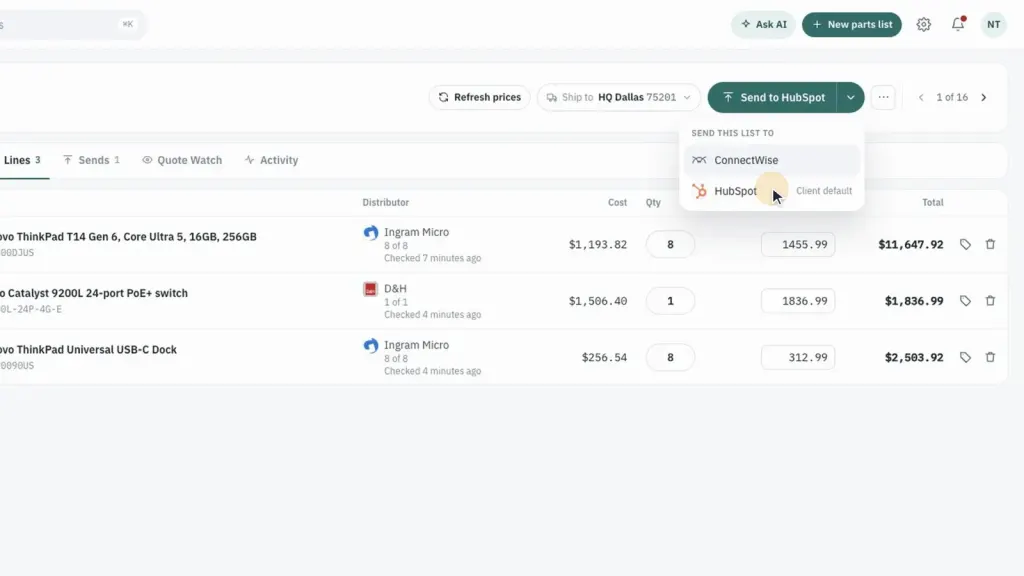
Open the parts list you want to send. The main button in the header says Send to and the name of your default PSA, for example Send to ConnectWise.
If you have more than one connection, click the arrow next to it. The menu Send this list to lists each one, such as ConnectWise and HubSpot. Pick where this list should go.
2. Choose the client and the record
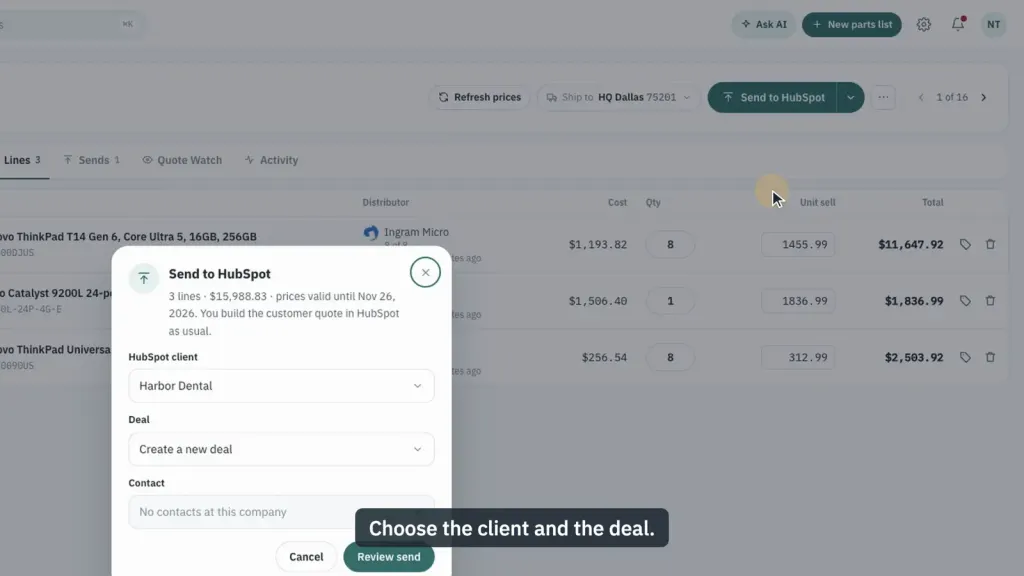
The Send to HubSpot (or Send to ConnectWise) dialog opens.
- Pick the client. For HubSpot this is the HubSpot client, a company synced from HubSpot.
- Pick the Deal or Opportunity. Choose an open one, or Create a new deal / Create a new opportunity.
- For a new ConnectWise opportunity, also pick the Contact. If you can manage connections, you can pick the Opportunity owner too. If the client has no contacts yet, you can add one from the dialog.
Then click Review send.
3. Check the preview
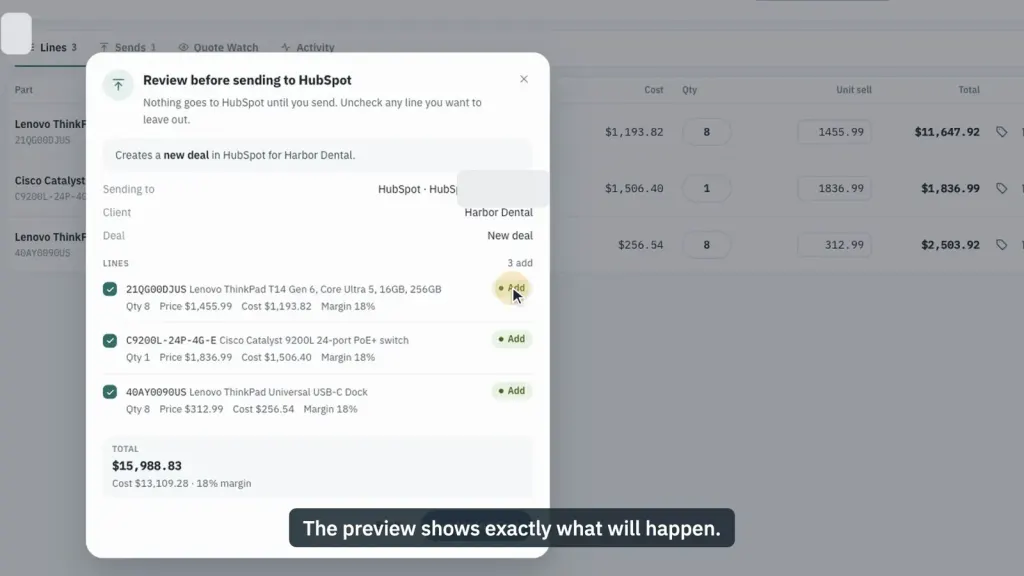
The preview says Nothing goes to HubSpot until you send. Each line shows a pill for what will happen, with the quantity, price, cost and margin:
- Add: a new line on the record.
- Update: a line Oakcrane sent before, with the old value crossed out.
Below the lines, Remove from lists lines Oakcrane added before that are no longer on the list. Not touched in lists lines someone added in the PSA by hand. Oakcrane leaves them alone.
Uncheck any line you want to leave out. On a resend, the totals show the record now and after this send. If prices have moved since they were last checked, Oakcrane asks you to review them first.
4. Send and open the record
Click Send to HubSpot (or Send to ConnectWise). After a few seconds a message confirms how many lines were sent, with an Undo button.
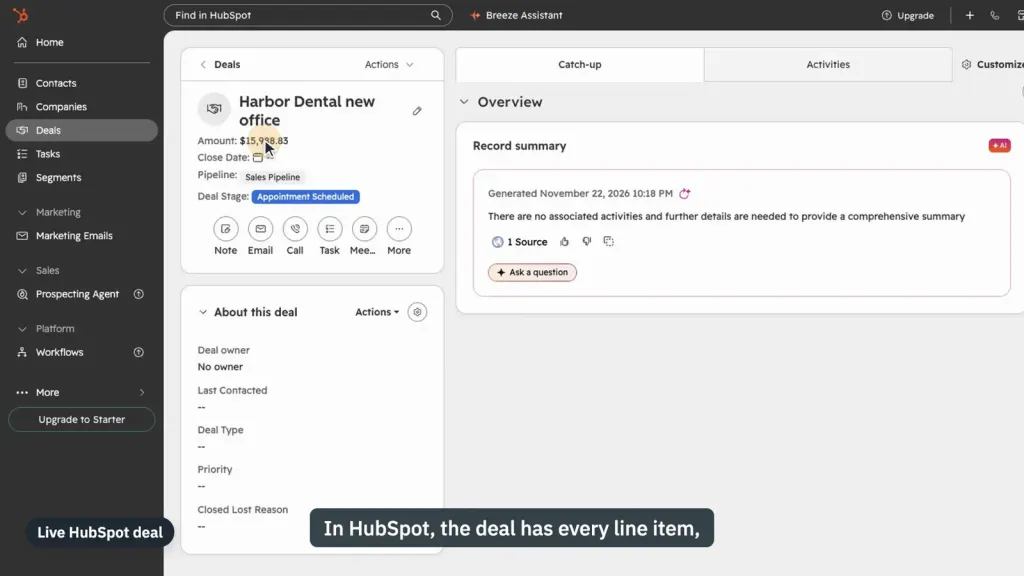
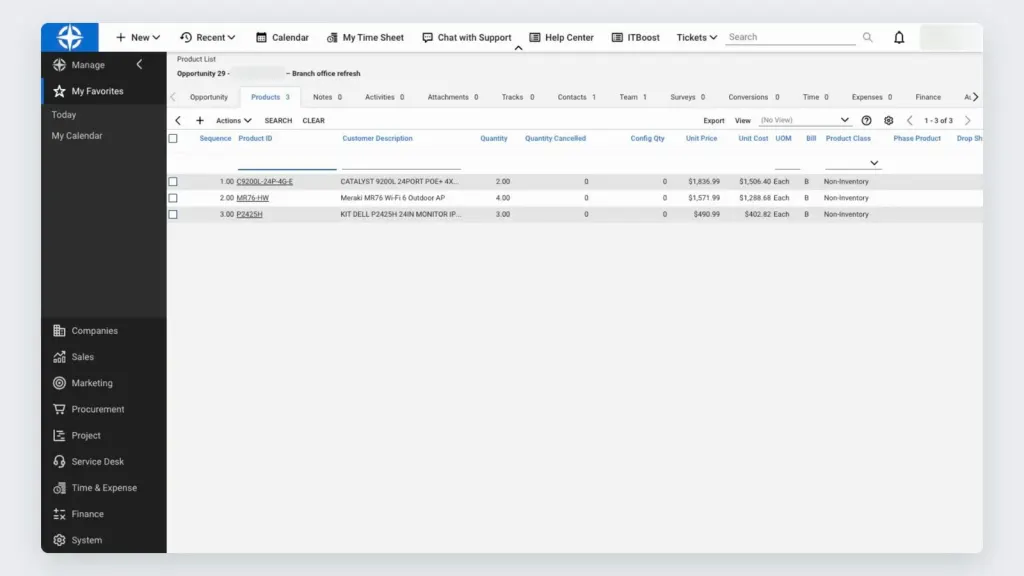
The Sent to card on the list now links to the deal or opportunity. Click Open to see it in your PSA. In HubSpot the deal has every line item, with the quantity and price from your list.
5. Send changes later
Edit the list in Oakcrane and click Save changes. In the confirm, choose Save in Oakcrane only and your PSA keeps the old lines until you send again.
Open the send menu again. The record you sent to is already selected. Click Review send and the preview marks each line as an add, an update or a removal. Send it, and Oakcrane updates its own lines on the same opportunity or deal. No duplicate lines.
6. Undo a send within 10 minutes
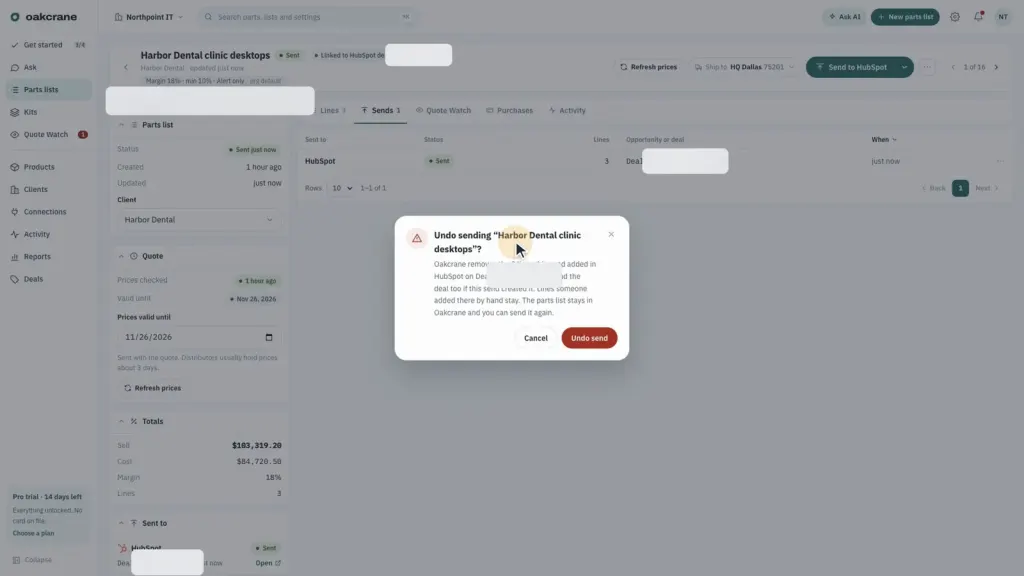
Changed your mind? Open the Sends tab on the parts list. On the latest send, open the row menu and choose Undo send.
The confirm dialog tells you exactly what will happen: Oakcrane removes the lines this send added, and the deal or opportunity too if this send created it. Lines someone added there by hand stay. The parts list stays in Oakcrane, so you can send it again.
Undo is available for 10 minutes after a send.
Tips
- Changes made in your PSA come back to Oakcrane on their own. Changes in Oakcrane only reach your PSA when you click send.
- Low-margin lines are flagged in the send dialog before you review.
- Your role needs the send permission. If the send button shows a lock, ask an admin.
Questions
Does Oakcrane build the customer quote for me?
No. Oakcrane puts the priced product lines on the opportunity or deal. You build and send the customer quote in your PSA as usual.
Will a resend create duplicate lines?
No. Oakcrane tracks the lines it added and updates them in place. Lines someone added by hand in the PSA are left as they are.
Can I send one list to both ConnectWise and HubSpot?
Yes, on Pro with both connected. Pick each one from the send menu. Each send is previewed and confirmed on its own.
What does Undo send remove?
Only the lines that send added, plus the deal or opportunity if that send created it. It works for 10 minutes after the send.
Transcript
0:03Sending is the only way Oakcrane changes your PSA, and it always shows you what will change first.
0:09One parts list links to one ConnectWise opportunity, or one HubSpot deal, so you always know where it went.
0:16Changes made in your PSA come back to Oakcrane on their own.
0:20Going the other way always takes your click.
0:26Here's Harbor Dental's parts list.
0:28This account has ConnectWise and HubSpot, so open the menu and pick HubSpot.
0:37Choose the client and the deal.
0:39We'll create a new deal.
0:40Then click Review send.
0:45The preview shows exactly what will happen.
0:49Every line is marked Add, with the quantity, price, cost and margin.
0:54Uncheck anything you want to leave out.
0:58Click Send to HubSpot.
1:00A few seconds later, the lines are on the deal.
1:05The Sent to card now links to the deal.
1:08Click Open.
1:13In HubSpot, the deal has every line item, with the quantity and price from your list.
1:26ConnectWise works the same way.
1:28The list goes to an opportunity, and for a new one, you pick the contact and the owner.
1:35Send again after a change, and the preview marks each line as an add, an update, or a removal.
1:42Oakcrane then updates its own lines on the opportunity, in place.
1:47Here's the same opportunity after a resend.
1:50Still three lines, with the new quantity.
1:57Changed your mind?
1:59For ten minutes after a send, you can undo it from the Sends tab.
2:03Oakcrane tells you exactly what it will remove, first.
2:18Next, keep an eye on every quote you send, with Quote Watch.


