
Step by step
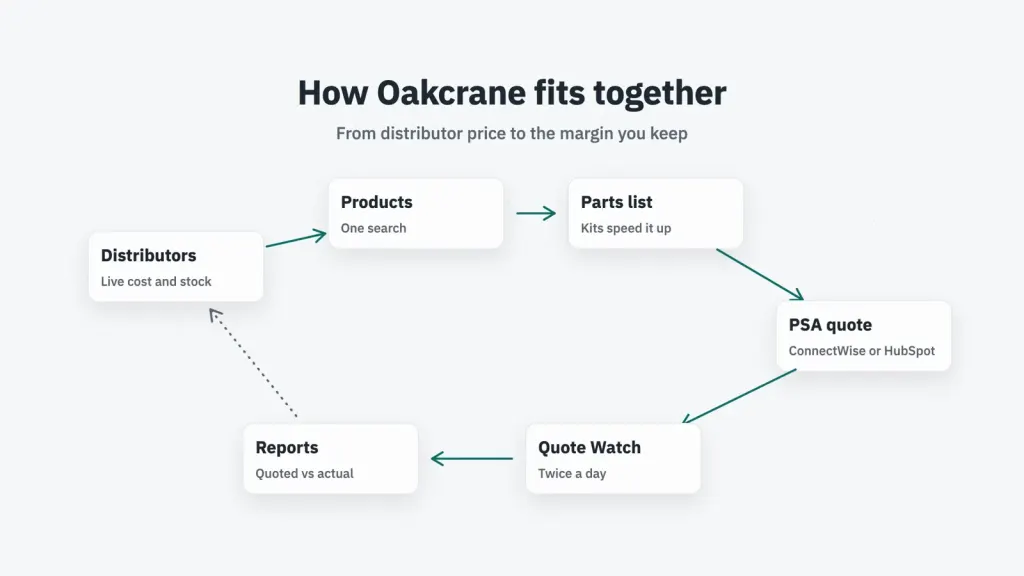
1. The whole loop
There are six pieces:
- Distributors: live cost and stock from your own accounts.
- Products: one search across every distributor.
- Parts list: your quote in Oakcrane. Kits speed it up.
- PSA quote: the opportunity in ConnectWise or the deal in HubSpot.
- Quote Watch: re-checks open quotes twice a day.
- Reports: quoted margin next to actual margin.
2. Distributors power Products
You connect your own Ingram Micro, TD SYNNEX and D&H accounts. Oakcrane reads live cost and stock from each one, warehouse by warehouse.
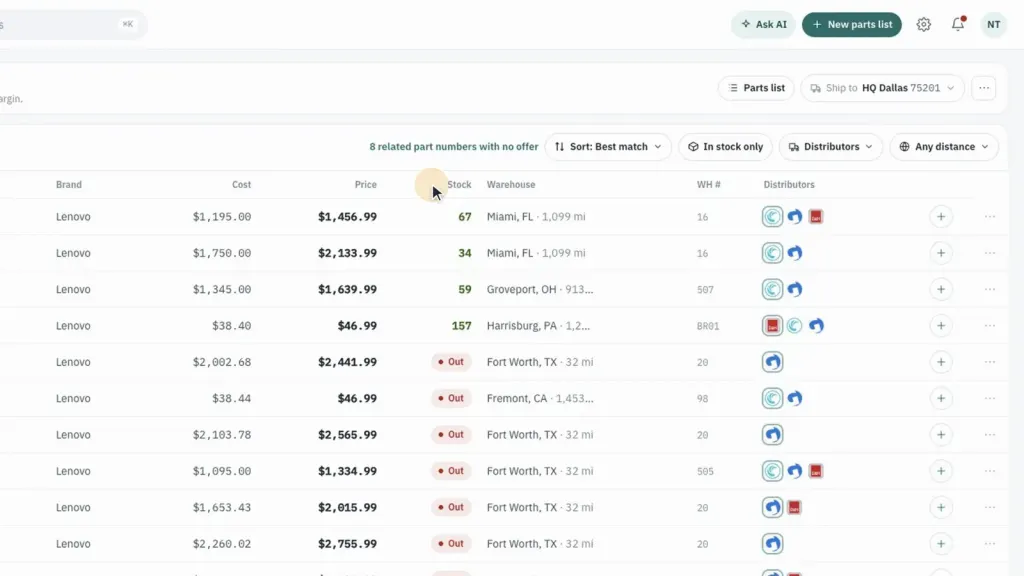
On the Products page, one search checks every connected distributor at once. Each result shows cost, your sell price (with your margin rules already applied), stock, the warehouse and which distributors carry it.
3. Parts lists hold the quote
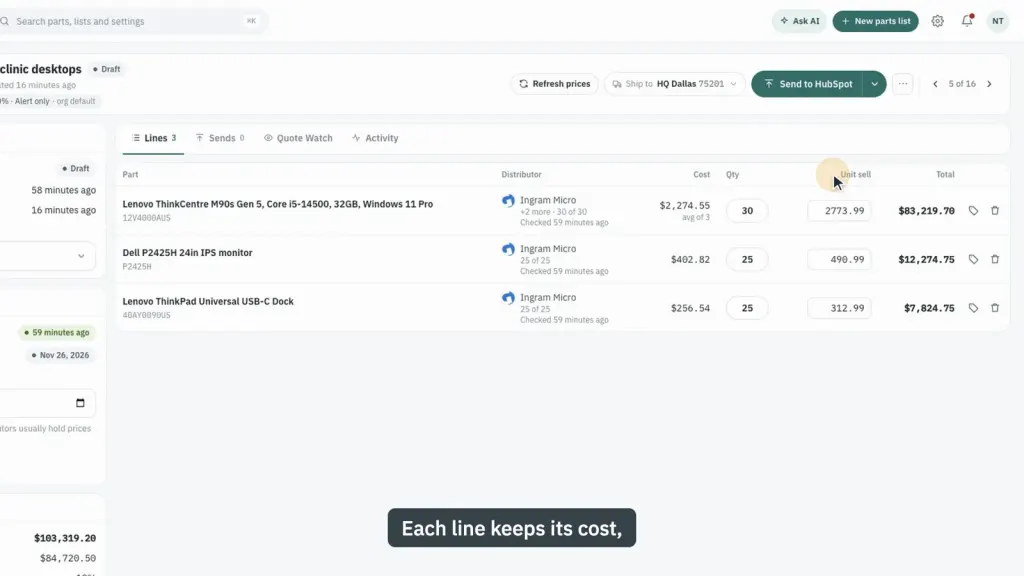
When you find the right parts, add them to a parts list. Each line keeps its cost, your unit sell price and the distributor it comes from. If a line is split across distributors, it shows the main one plus "+2 more".
Kits speed this up. Save a standard build once, like a laptop, a dock and two monitors for a new hire, and add it to any parts list.
4. Send the list to your PSA
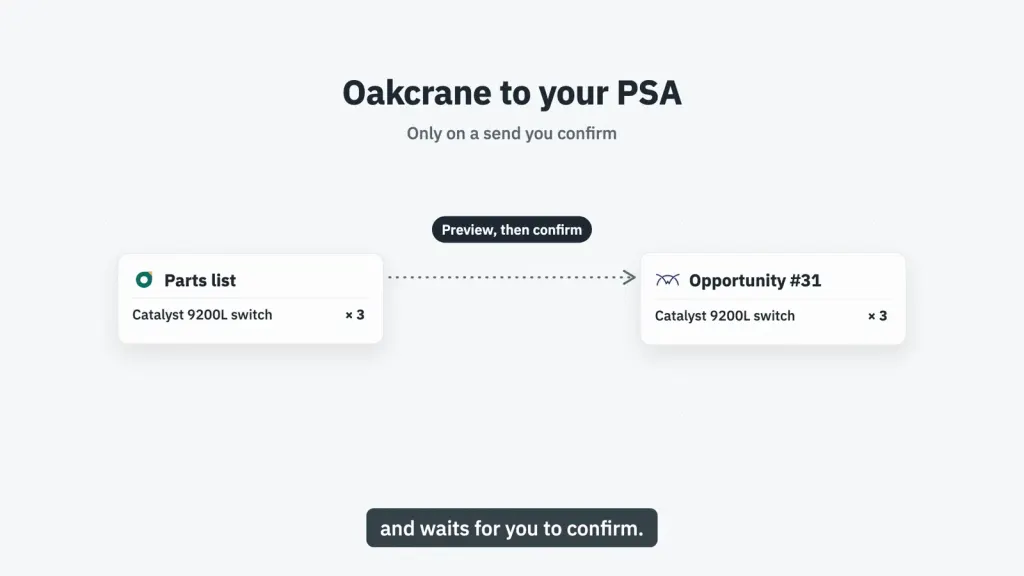
Click Send to ConnectWise or Send to HubSpot on the parts list. Nothing goes out on its own. You pick the client, see a preview of exactly what will change, and confirm before it's sent.
From then on, one quote equals one parts list. They're linked both ways, so you always know which list belongs to which quote.
5. Quote Watch protects open quotes
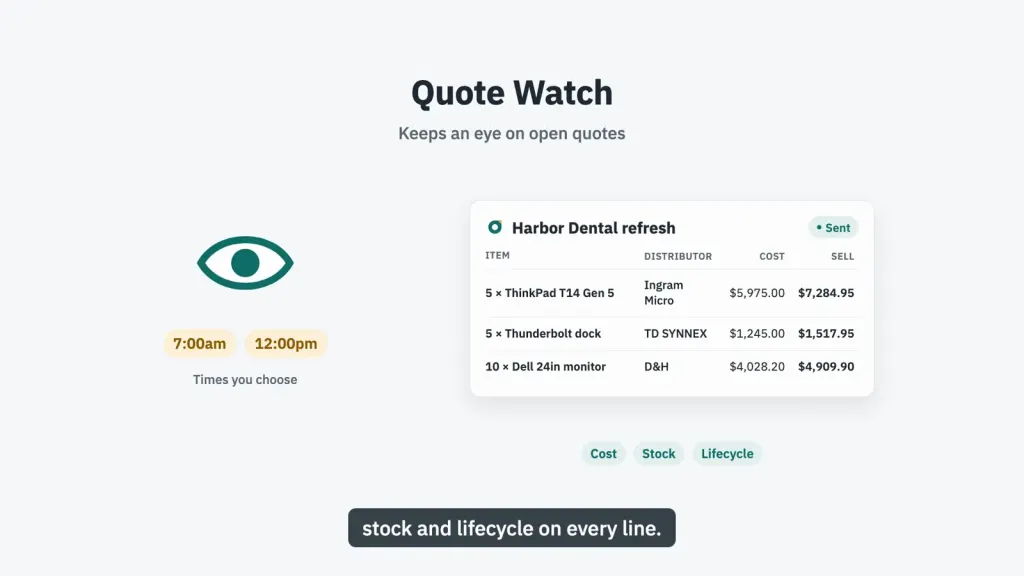
While a quote is open, Quote Watch re-checks cost, stock and lifecycle on every line twice a day. You pick the time of the first check (7:00am by default), and the second runs five hours later.
If a cost goes up, stock runs out or a part reaches end of life, you get an alert on the Quote Watch page with a suggested fix, before your client signs.
6. How sync works
- PSA to Oakcrane is automatic. If someone edits a quantity in ConnectWise, the parts list updates to match.
- Oakcrane to PSA only happens when you send. Every send shows a preview first and waits for you to confirm.
- Conflicts are never guessed. If the same line changed in both places, Oakcrane flags it for you to review and nothing is overwritten. You choose which version to keep.
- Won or lost ends the watch. When the quote is won or lost in your PSA, Oakcrane sees it and stops watching.
7. Reports show what you kept
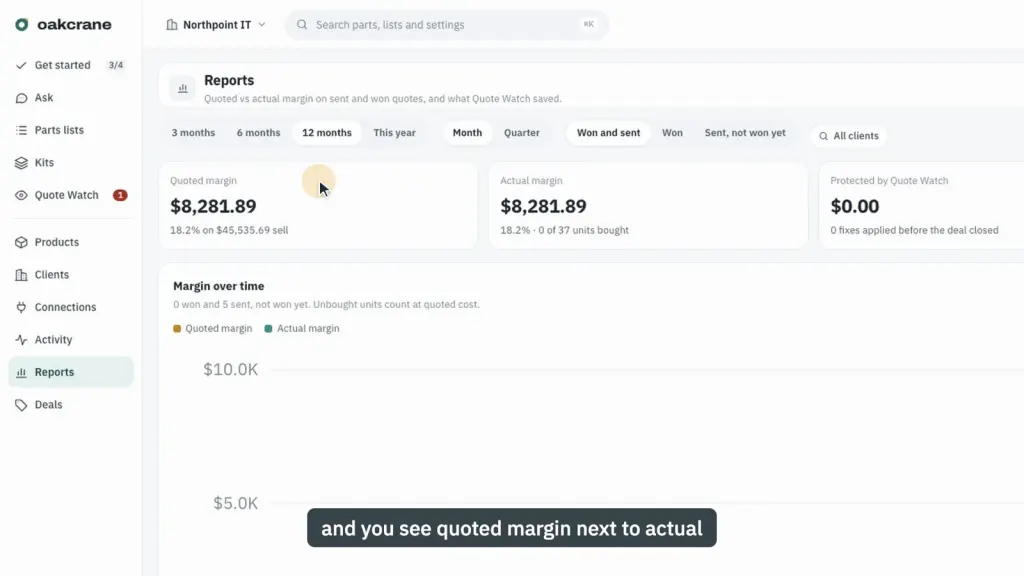
Open Reports. Record what you actually paid, and you see quoted margin next to actual margin, plus how much Quote Watch protected before the deal closed. Filter by period, by won or sent quotes, and by client.
Tips
- Set up in this order: distributors, then your PSA, then import any open quotes.
- Edit quantities wherever is easiest. PSA edits sync back into Oakcrane on their own.
Questions
If I change a quote in ConnectWise, do I have to update Oakcrane too?
No. Changes made in your PSA come back to Oakcrane automatically. If the same line also changed in Oakcrane, you get a conflict to review instead of an overwrite.
Can one parts list go to more than one quote?
Each parts list links to one opportunity or deal in each PSA, and the two stay in sync. If you quote the same build for several clients, save it as a kit and add it to each new parts list.
What happens when a deal closes?
When the quote is marked won or lost in your PSA, Oakcrane stops watching it. Sent and won quotes show up in Reports, where you can compare quoted and actual margin.
Transcript
0:03This video shows how the pieces of Oakcrane fit together, from your distributors all the way to your margin reports.
0:10Here's the whole loop in one picture.
0:13We'll walk through each step, then look at the real thing.
0:19It starts with your distributors.
0:22You connect your own Ingram Micro, TD SYNNEX, and D&H accounts, and Oakcrane reads live cost and stock from each one.
0:33That powers Products.
0:35OneSearch checks every distributor at once, and every price already includes your margin.
0:50When you find the right parts, you add them to a parts list.
0:53That's your quote in Oakcrane.
0:55Each line keeps its cost, your sell price, and the distributor it comes from.
1:03Kits speed this up.
1:05Save a standard build once, like a laptop, a dock and two monitors for a new hire, and add it to any parts list.
1:16Next, you send the parts list to your PSA as a quote, in ConnectWise or HubSpot.
1:28Nothing goes out on its own.
1:30You see a preview of exactly what will change, and you confirm before it's sent.
1:38From then on, one quote equals one parts list.
1:42They're linked both ways, so you always know which list belongs to which quote.
1:49While the quote is open, Quote Watch keeps an eye on it.
1:53Twice a day, at times you choose, it re-checks cost, stock and lifecycle on every line.
2:00If a cost goes up, stock runs out, or a part reaches end of life, you get an alert with a suggested fix, before your client signs.
2:17Now, the sync rules.
2:20Changes made in your PSA come back to Oakcrane on their own.
2:23If someone edits a quantity in ConnectWise, the parts list updates to match.
2:29Changes in Oakcrane only reach your PSA when you send them.
2:33Every send shows a preview first, and waits for you to confirm.
2:37And if the same line changed in both places, Oakcrane doesn't guess.
2:41It flags a conflict for you to review, and nothing is overwritten.
2:46When the quote is won or lost in your PSA, Oakcrane sees that too, and stops watching it.
2:56Last, Reports.
2:58Record what you actually paid, and you see quoted margin next to actual margin, plus how much Quote Watch protected before the deal closed.
3:15So that's the loop.
3:18Distributors feed products.
3:19Products fill parts lists.
3:21Parts lists become quotes.
3:23Quote Watch protects them, and Reports shows what you kept.


