
Step by step
1. What's on a line
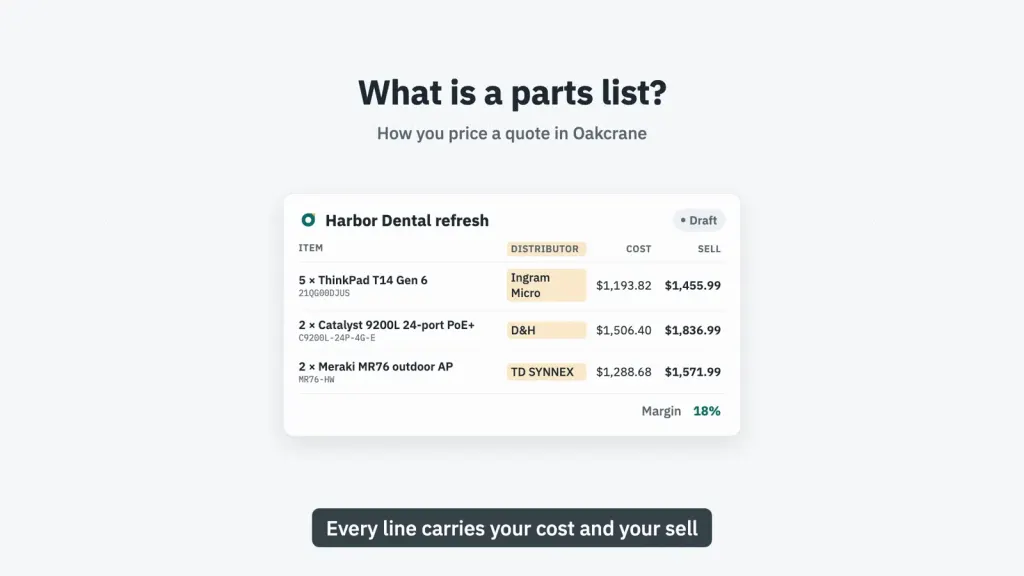
Every line carries the product, the distributor Oakcrane picked, your cost and your sell price. The margin is always right there, so you never quote below what you meant to.
2. Find your parts lists
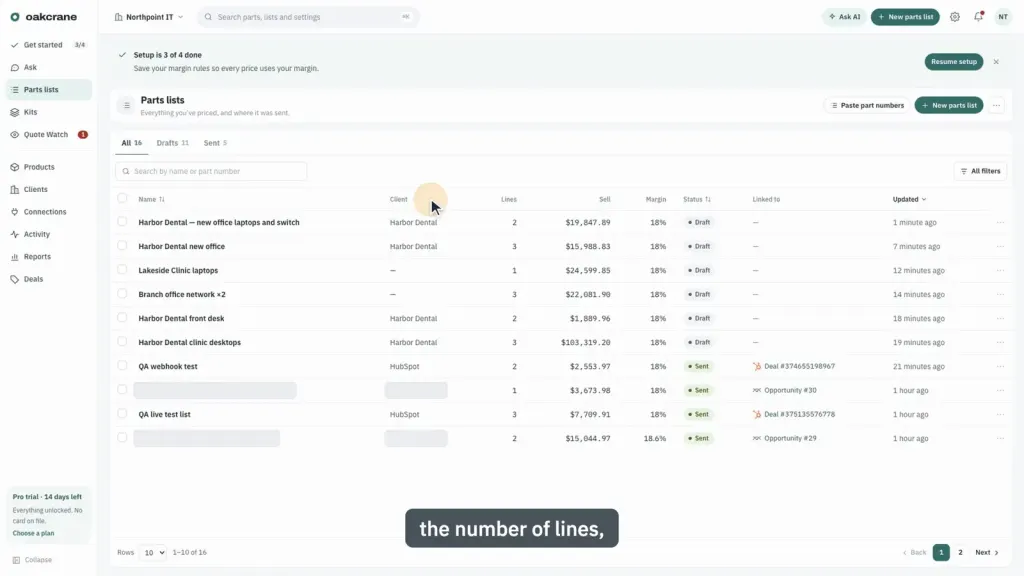
Click Parts lists in the sidebar. Each list shows its client, the number of lines, the sell total, the margin, its status and when it was updated.
Use the All, Drafts and Sent tabs to filter. New lists start as drafts. Build one from Products, from Ask AI, from a kit, with Paste part numbers, or with New parts list.
3. Draft, Sent and Linked to
Draft means the list lives only in Oakcrane so far. Sent means it has gone to your PSA or CRM.
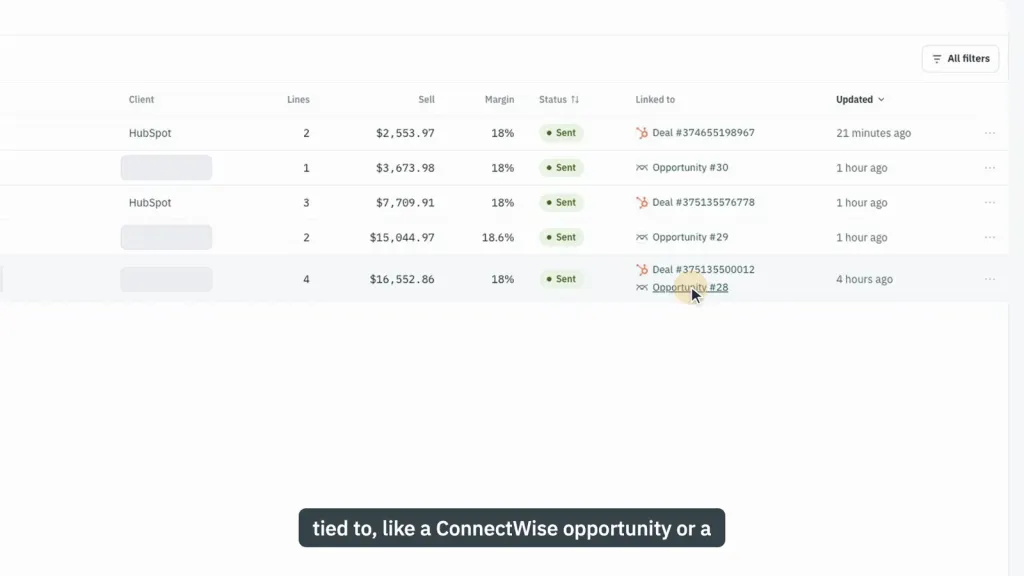
The Linked to column shows the records a list is tied to, like a ConnectWise opportunity or a HubSpot deal. Click one to open it.
4. Inside a list
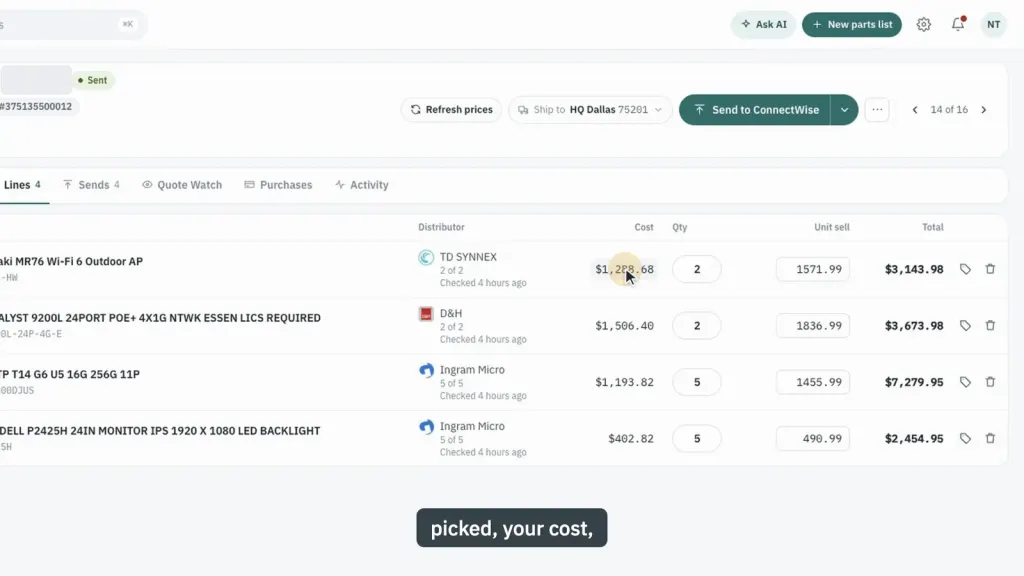
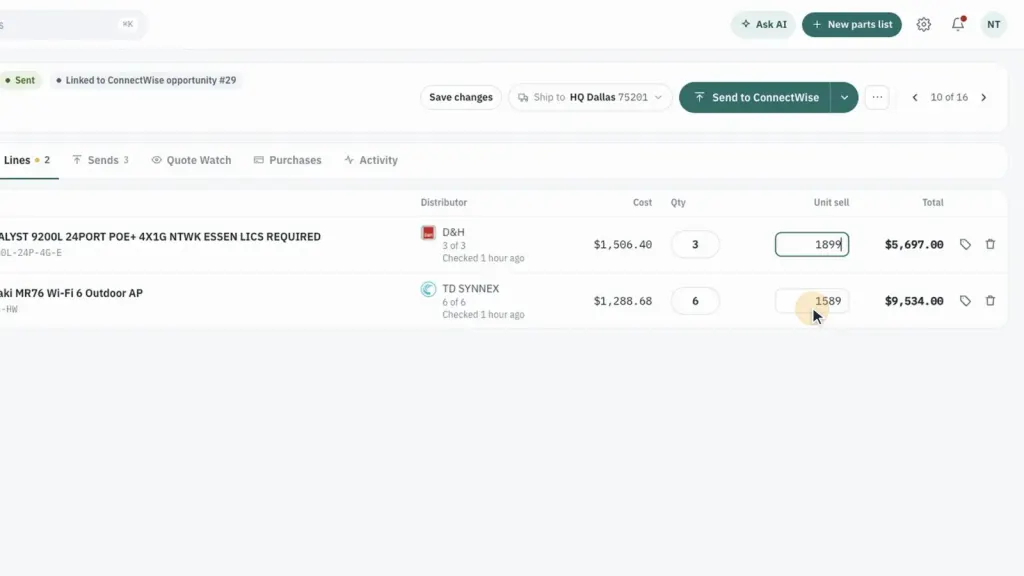
Open a list to see every line. Each line shows the distributor Oakcrane picked and how many it has in stock, your Cost, the Qty, the Unit sell and the line Total.
On the left, Totals add up the sell, the cost and your margin. The label under the list name tells you exactly which records it's linked to. Tabs along the top show Lines, Sends, Quote Watch and Activity.
5. Edit a sent list
You can still edit a list after it's sent. Change a quantity or a Unit sell price, and a Save changes button appears at the top.
6. Choose where the change goes
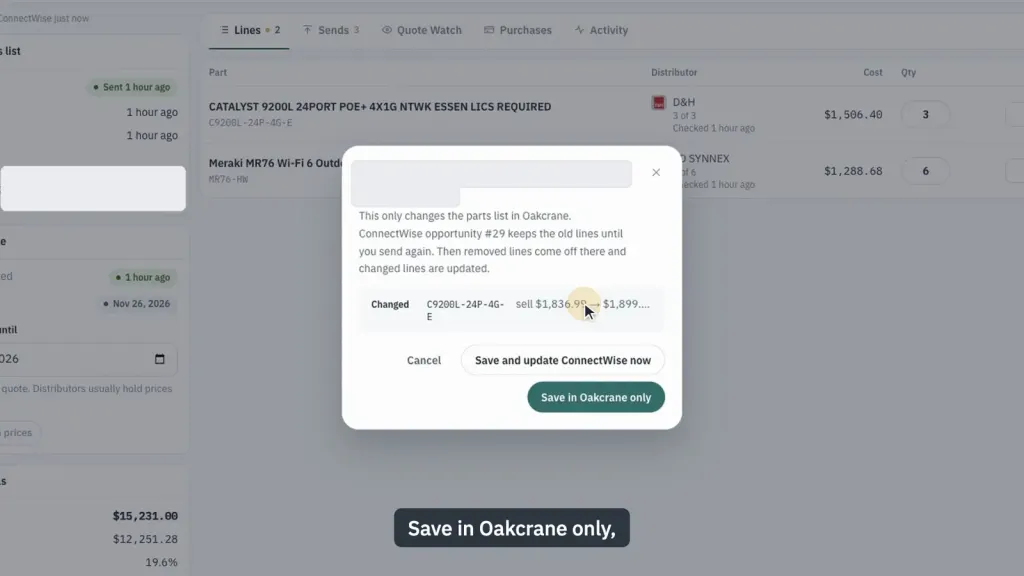
Click Save changes. Oakcrane shows what changed and asks first:
- Save in Oakcrane only keeps the change here. Your PSA keeps the old lines until you send again.
- Save and update ConnectWise now (or your PSA's name) shows a preview of every change before anything is sent.
Click Cancel or close the dialog, and the list stays exactly as it was.
Tips
- Use the arrows next to the page count at the top of a list to step through your lists without going back to the table.
- From a list you can also Save as kit, Watch without sending, or Ask AI about this list.
Questions
Is a parts list the same as a quote?
No. Oakcrane isn't a quoting tool. A parts list prices the hardware, then you send it to your PSA or CRM and build the customer quote there.
Can one PSA quote have more than one parts list?
No. Each quote, opportunity or deal gets exactly one parts list, and the two stay linked both ways.
What happens to my PSA if I edit a sent list?
Nothing, unless you choose Save and update ConnectWise now (it shows your PSA's name). Save in Oakcrane only leaves your PSA untouched until you send again.
Transcript
0:02A parts list is how you price a quote in Oakcrane.
0:07Each line is a product and a quantity, with the distributor you buy it from.
0:11Every line carries your cost and your sell price, so the margin is always right there.
0:16And each quote in your PSA gets exactly one parts list.
0:21The two stay linked, both ways.
0:26You'll find your parts lists in the sidebar.
0:28Each one shows its client, the number of lines, the sell total and the margin.
0:35Draft means the list lives only in Oakcrane so far.
0:39New lists start as drafts.
0:41Build one from Products, from Ask AI, from a kit, or by pasting part numbers.
0:49Sent means it has gone to your PSA or CRM.
0:52The Linked to column shows the records it's tied to, like a ConnectWise opportunity or a HubSpot deal.
1:02Open a list to see every line.
1:03Each line shows the distributor Oakcrane picked, your cost, the quantity, and the sell price.
1:10On the left, the totals add up the sell, the cost and your margin.
1:15And the label under the name tells you exactly which records this list is linked to.
1:22You can still edit a list.
1:25Change a price, then save.
1:30Oakcrane shows you what changed and asks first.
1:33Save in Oakcrane only, and your PSA keeps the old lines until you send again.
1:39Or save and update ConnectWise now.
1:41You'll see a preview of every change before anything is sent.
1:45Nothing changes until you choose.
1:47Close the dialog, and the list stays exactly as it was.
1:52From here, you can send a list to your PSA, let QuoteWatch keep an eye on prices, or split it across distributors.
2:00That's up next.


