
Step by step
1. Create a kit
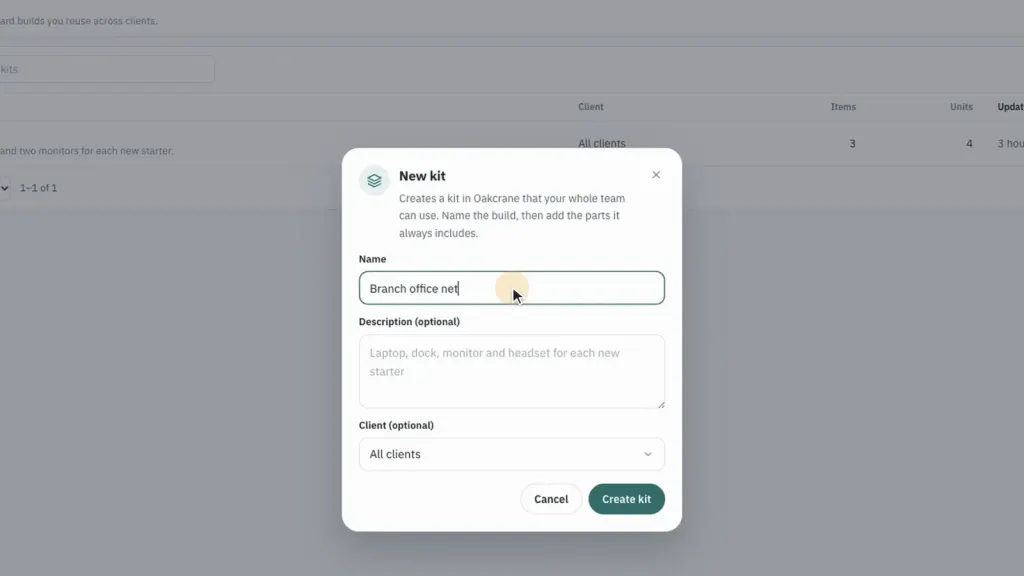
Click Kits in the sidebar, then New kit. Give it a Name and a short Description. Leave Client on All clients, or pick one client if the kit is just for them. Click Create kit.
Kits are shared with your whole team.
2. Add the items
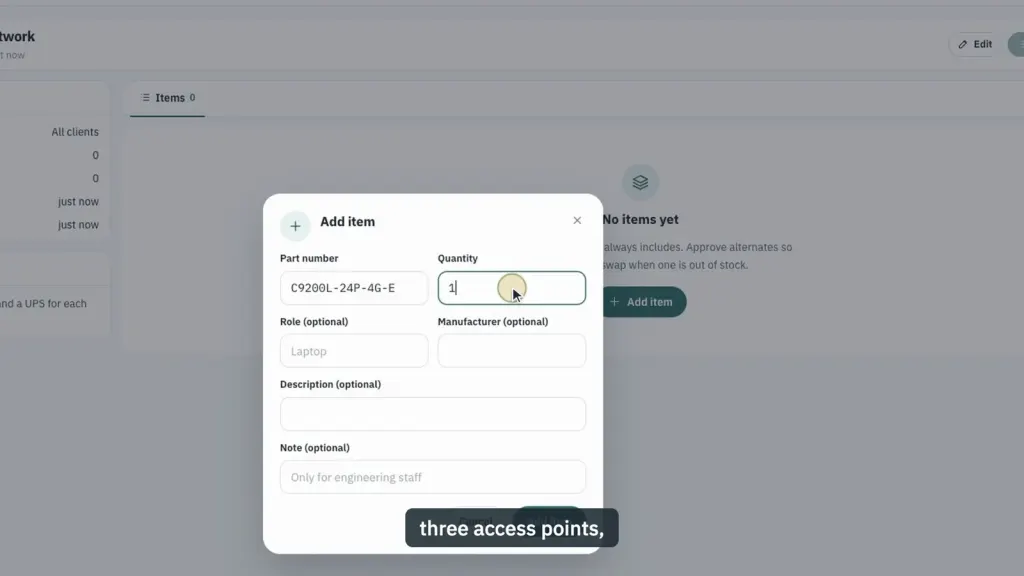
On the new kit page, click Add item. Enter the Part number and Quantity, and optionally a Role (such as Switch or Access point), manufacturer, description and note. Click Add item to save it.
Repeat for each item the build always includes. For example: one 24-port PoE switch, three access points and a rack UPS.
3. Save the kit
Click Save changes. Oakcrane asks you to confirm, because the kit is shared with your whole team. Click Save kit.
4. Approve alternates
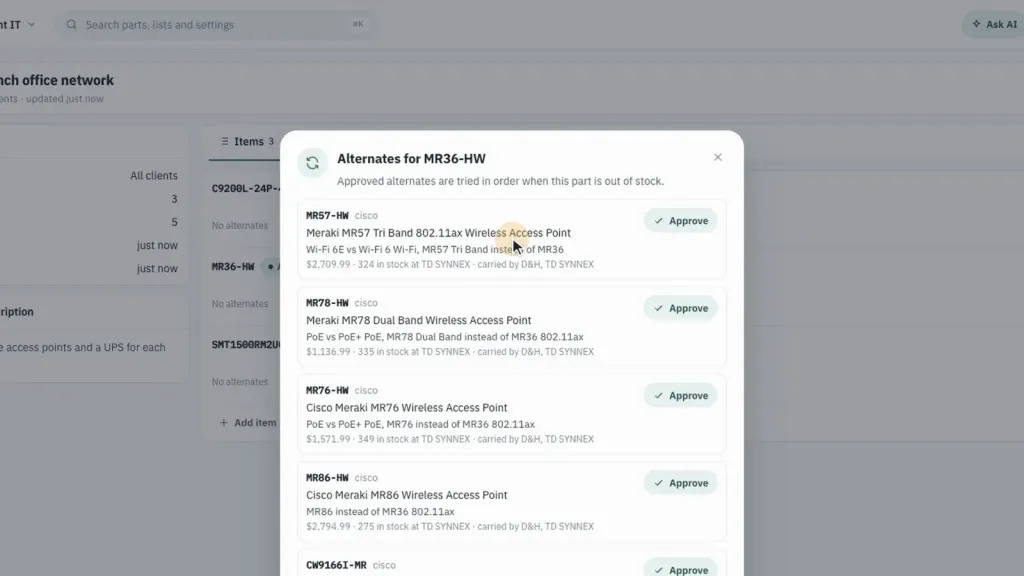
If a part is out of stock, click Suggest under it, or choose Suggest alternates from the item's menu. Oakcrane finds close matches in the catalog, with the difference, price and stock for each.
Click Approve on the one you want, then Approve alternate in the confirm. It becomes the fallback for that item. You can approve more than one and use the arrows on each alternate to set the order they're tried. Click Done when you're finished.
5. Add the kit to a parts list
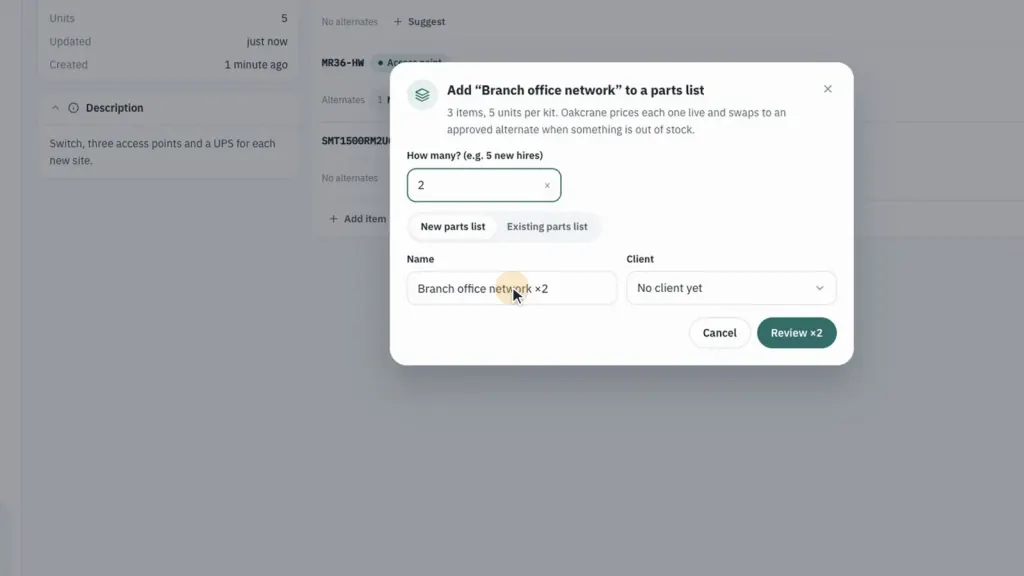
Click Add to parts list. Under How many?, enter the number of kits, for example 2 for two new offices. Choose New parts list (and give it a name and client) or Existing parts list. Click Review ×2.
6. Review the live picks
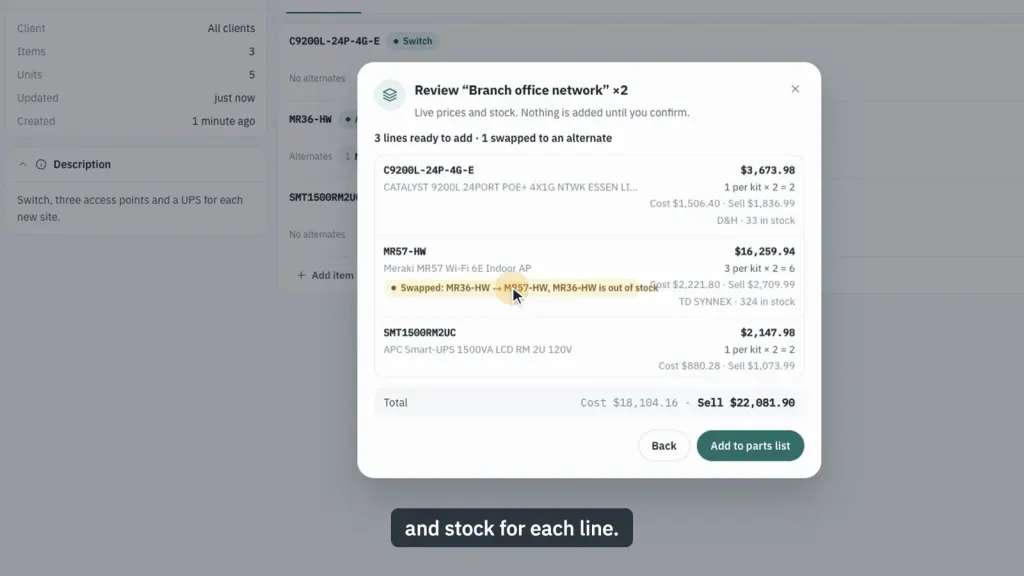
The review shows the live pick for every item before anything is added. Each line shows the math, like 3 per kit × 2 = 6, with cost, sell, distributor and stock, and a total at the bottom.
If a part was out of stock, the line shows a Swapped note naming your approved alternate and why. Click Add to parts list, or Back to change something.
7. Open the parts list
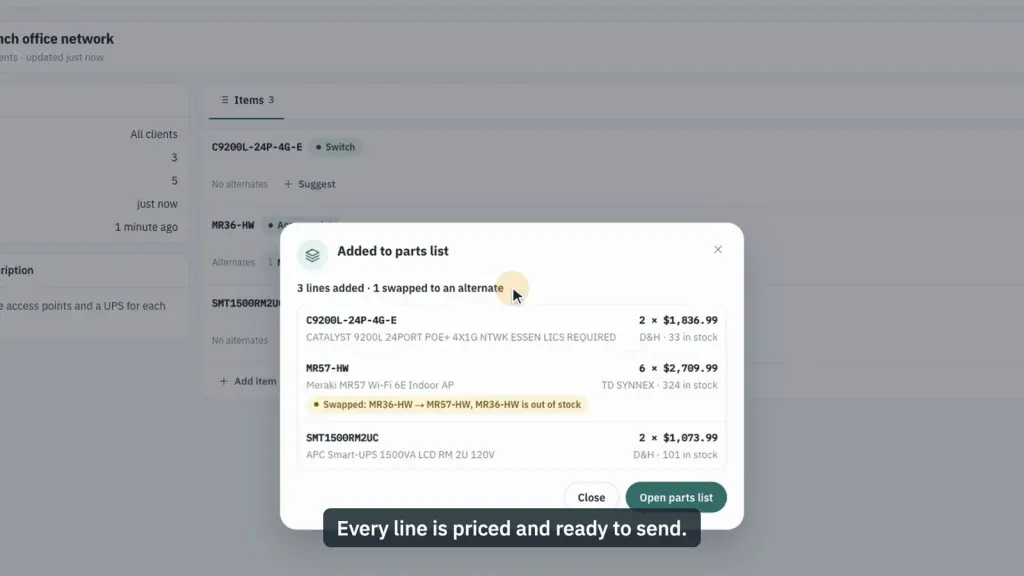
Added to parts list confirms the lines added and any swaps. Click Open parts list. Every line is priced and ready to send.
You can also turn any parts list into a kit: open the list and choose Save as kit.
Tips
- Use roles like Switch, Access point or UPS so lines are easy to scan in the review.
- Approve two or three alternates for parts that often go short. Oakcrane tries them in the order you set.
Questions
Are kit prices fixed when I save the kit?
No. A kit stores part numbers and quantities. Prices and stock are checked live every time you add the kit to a parts list.
What happens when a kit part is out of stock?
Oakcrane tries your approved alternates in order and uses the first one that can be filled. The review shows the swap and the reason before anything is added.
Can I make a kit for one client only?
Yes. Pick the client when you create the kit, or leave it on All clients to use it everywhere.
Transcript
0:03A kit is a standard build you quote again and again, like the network for a new branch office.
0:09Each item can have approved alternates.
0:11When a part is out of stock, Oakcrane tries them in order.
0:15Add a kit for two offices, and every quantity is doubled, priced live, and added to a parts list.
0:24Kits live in the sidebar.
0:25Click New kit, and give it a name and a short description.
0:42Now add the items this build always includes.
0:45A 24-port PoE switch, three access points, and a rack UPS.
1:03Save the kit.
1:05Oakcrane asks you to confirm, because the kit is shared with your whole team.
1:15The access points are out of stock right now.
1:18Click Suggest alternates.
1:20Oakcrane finds close matches in the catalog, with price and stock.
1:28Approve one, and it becomes the fallback for that item.
1:32You can approve more, and set the order they're tried.
1:47Now add the kit to a parts list.
1:49Enter how many.
1:51Two, for two new offices.
1:58The review shows the live pick for every item, before anything is added.
2:03Three per kit, times two, is six.
2:06With cost, sell, and stock for each line.
2:09The access points were swapped to your approved alternate, and it tells you why.
2:14Click Add to parts list, then open it.
2:17Every line is priced and ready to send.
2:28You can also turn any parts list into a kit, with Save as kit.
2:37Next, send your parts list to your PSA.


