
Step by step
1. How Oakcrane decides to split
If one distributor can ship the whole quantity, the line stays there. If none can, Oakcrane takes the cheapest stock first until the quantity is covered.
You control this in Settings, Quoting, under Sourcing:
- Prefer one distributor keeps a line on one distributor when one can ship it all.
- Split when it saves more than sets how much cheaper (5% by default) a split must be before Oakcrane uses it anyway.
Turn off Prefer one distributor to always use the cheapest mix.
2. Read the distributor cell
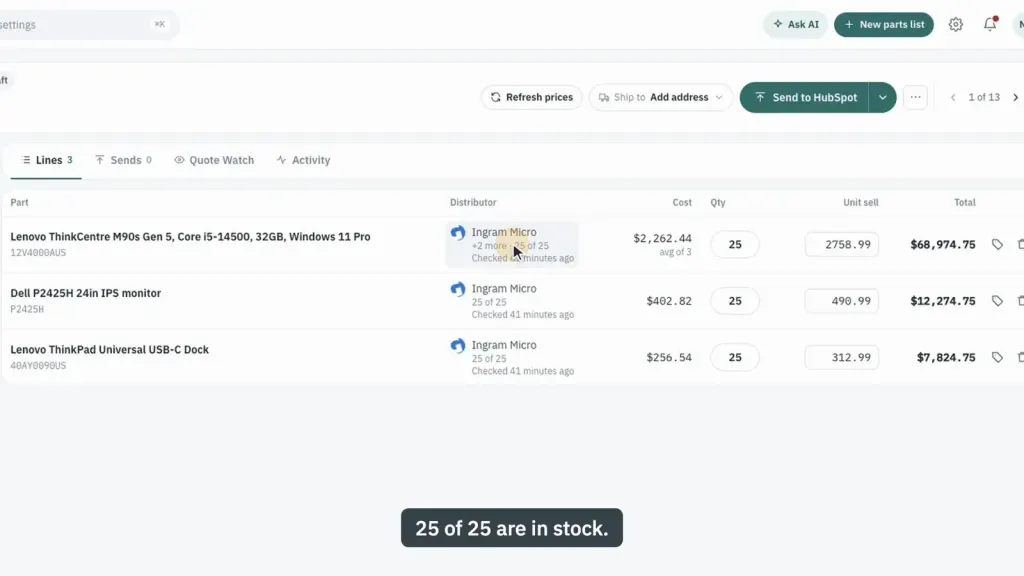
Open a parts list. On a split line, the Distributor column shows the distributor supplying the most, then a note like +2 more · 25 of 25. That means two more distributors make up the rest, and all 25 are in stock.
The Cost shows the blended average with avg of 3 under it.
3. See where they come from
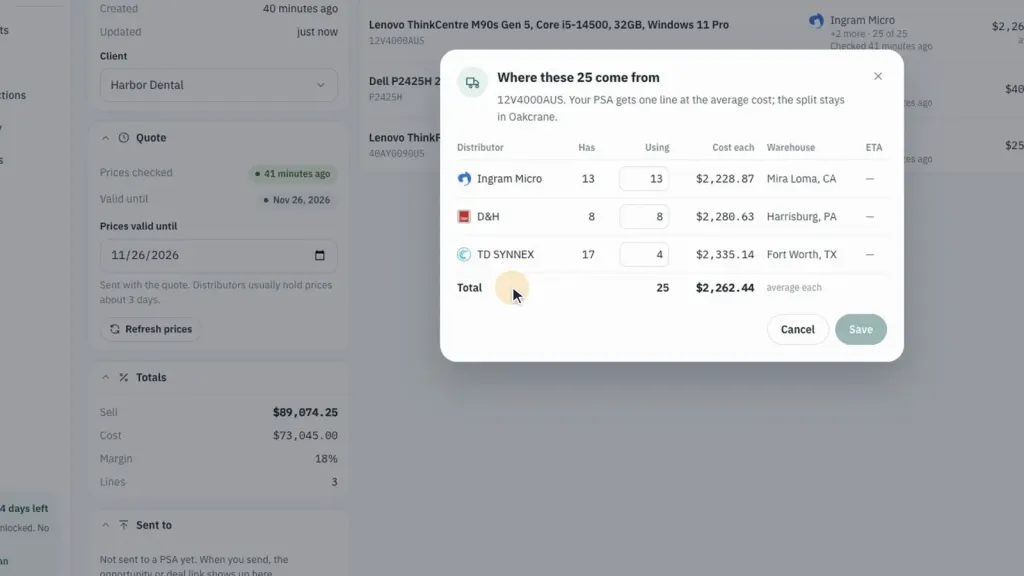
Click the distributor cell. Where these 25 come from lists each distributor with how many it Has, how many you're Using, the Cost each and the Warehouse. The Total row shows the quantity and the average cost each.
4. Change the split
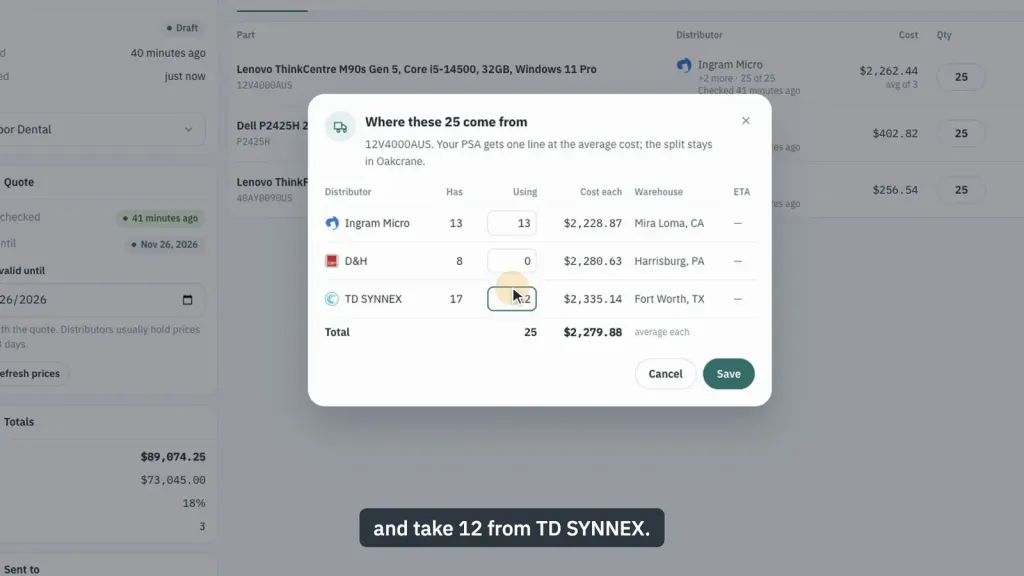
Type new numbers in the Using column. Say you'd rather order from two distributors: set D&H to 0 and take 12 from TD SYNNEX. The total and the average update as you type.
5. Save the plan
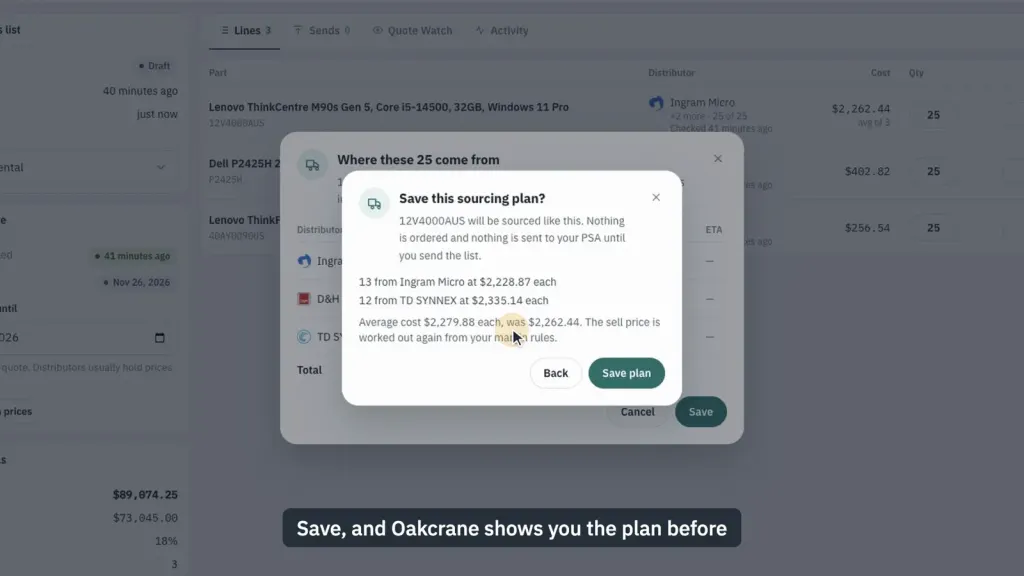
Click Save. The confirm dialog Save this sourcing plan? lists each share and its cost, and the new average next to the old one. Nothing is ordered and nothing is sent to your PSA.
Click Save plan to keep it, or Back to keep editing. The sell price is worked out again from your margin rules.
6. See how the cost is worked out
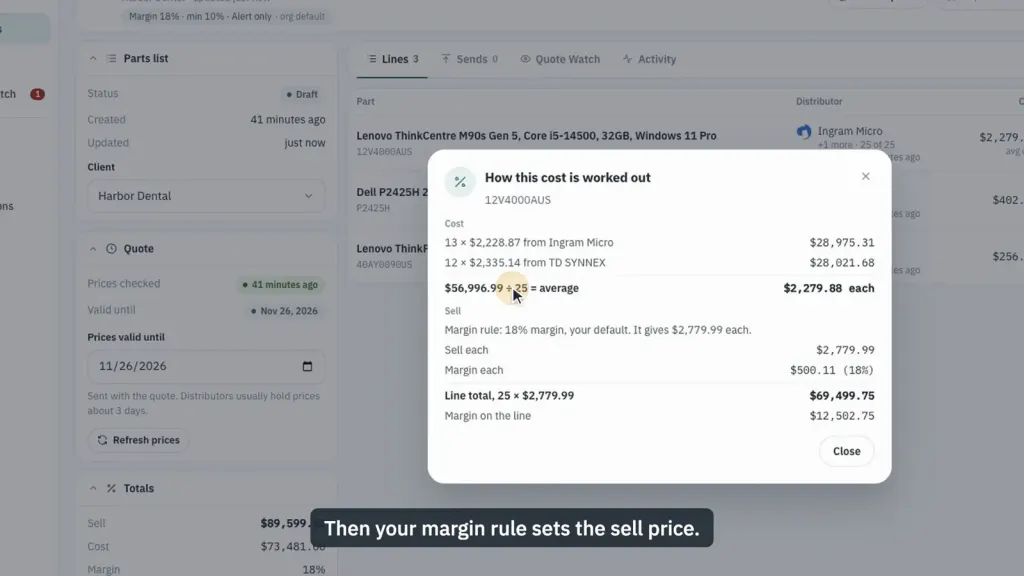
Click the Cost cell. How this cost is worked out shows each share times its cost, divided by the quantity, to give the average. Below it, the Sell section shows the margin rule, sell each, margin each, the line total and the margin on the line.
7. Change the quantity
If the client wants more, change the Qty. The distributor cell shows Re-plans on save. Click Save changes.
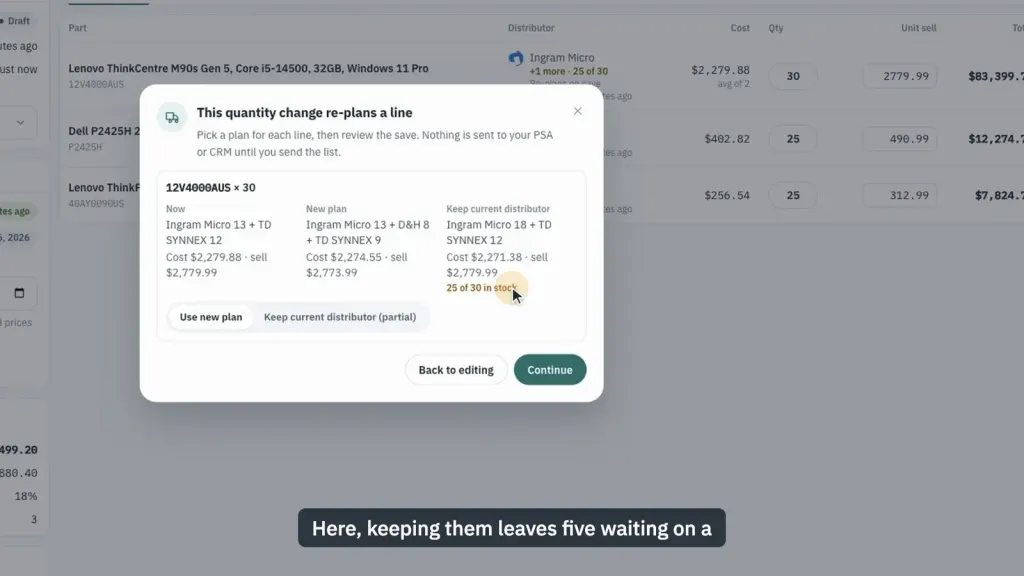
The dialog This quantity change re-plans a line shows three columns: Now, New plan and Keep current distributor. Keeping your current distributors may leave some units waiting on a restock, and the dialog says how many. Pick Use new plan or Keep current distributor (partial), click Continue, then confirm the save. Nothing goes to your PSA until you send the list.
Tips
- Your PSA gets one line per product at the blended cost, so the customer quote stays clean.
- Turn off Prefer one distributor if you always want the cheapest mix, even when one distributor could ship it all.
Questions
Will my client see three lines for one product?
No. Your PSA gets one line at the average cost. The split by distributor stays in Oakcrane.
Does saving a split place an order?
No. Saving a sourcing plan only records where the units should come from. Nothing is ordered, and nothing is sent to your PSA until you send the list.
What if there still isn't enough stock?
Oakcrane covers what it can and shows the shortfall, for example 25 of 30 in stock, so you can decide before you quote.
Transcript
0:03Sometimes no single distributor has enough stock to cover a line.
0:07When that happens, Oakcrane splits it.
0:10It takes the cheapest stock first, until the whole quantity is covered.
0:14If one distributor can ship it all, the line stays there, unless splitting saves more than the amount you set in your sourcing settings.
0:21Your PSA still gets one line, at the average cost.
0:25The split stays in Oakcrane.
0:29Here's a parts list for Harbor Dental.
0:32It needs 25 desktops.
0:34Look at the distributor column.
0:36Ingram Micro has the most, and two more distributors make up the rest.
0:4125 of 25 are in stock.
0:44The cost is the blended average across all three.
0:50Click the distributor to see where they come from.
0:53Each distributor's stock, how many you're using, the cost each, and the warehouse.
1:02You can change the split.
1:04Say you'd rather order from two distributors.
1:07Set D&H to zero, and take 12 from TD SYNNEX.
1:14The total and the average update as you type.
1:17Save, and Oakcrane shows you the plan before it keeps it.
1:30Click the cost to see the math.
1:33Each share times its cost, divided by the quantity.
1:36Then your margin rule sets the sell price.
1:46Now the client wants 30.
1:48Change the quantity, and the line tells you it will re-plan when you save.
1:54Save, and you see the line now, the new plan, and what happens if you keep your current distributors.
2:00Here, keeping them leaves five waiting on a restock.
2:05Pick the plan you want, and continue.
2:08Nothing goes to your PSA until you send the list.
2:18Next, let Oakcrane build a parts list for you, with Ask.


