
Step by step
1. Search once
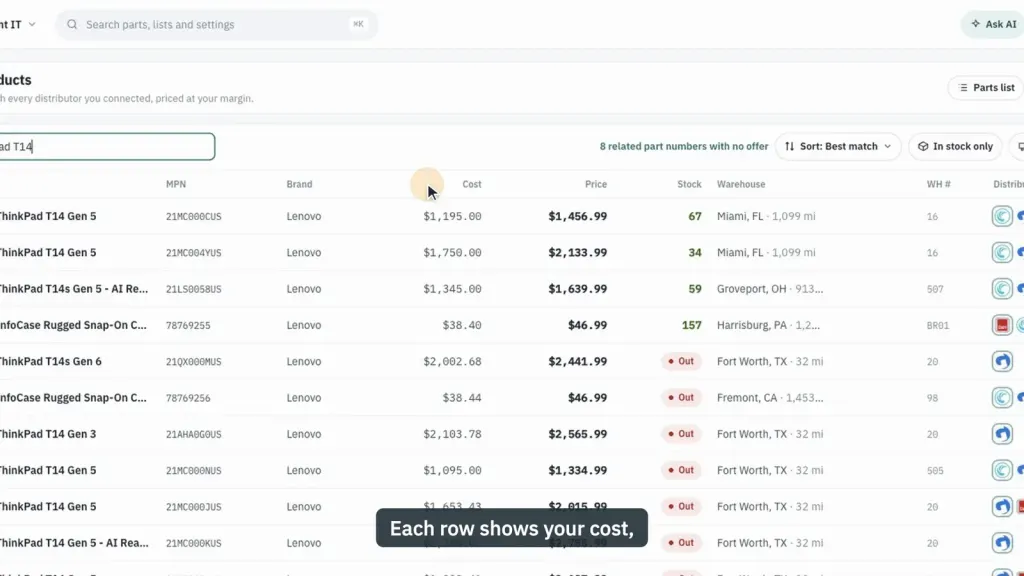
Click Products in the sidebar. Type a part number, a product name or specs into the search box and press Enter. For example, "ThinkPad T14".
Oakcrane asks Ingram Micro, TD SYNNEX and D&H at the same time. Each row shows the product, MPN, brand, your Cost, your sell Price, Stock, the Warehouse it ships from and its distance, and logos for the distributors that carry it.
2. Check your margin
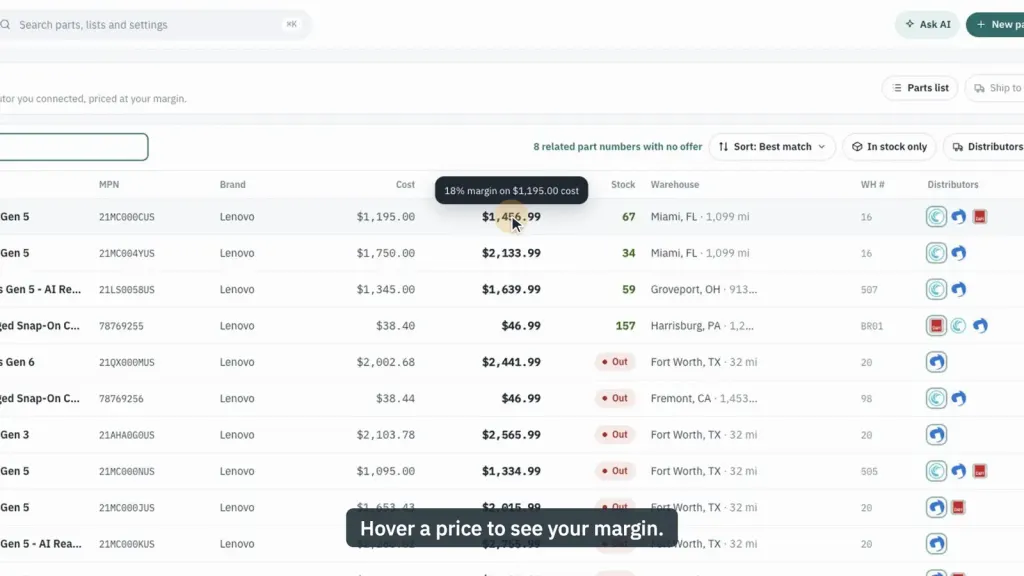
Hover a price to see the margin behind it, for example "18% margin on $1,195.00 cost". The sell price comes from your margin rules.
3. Compare every offer
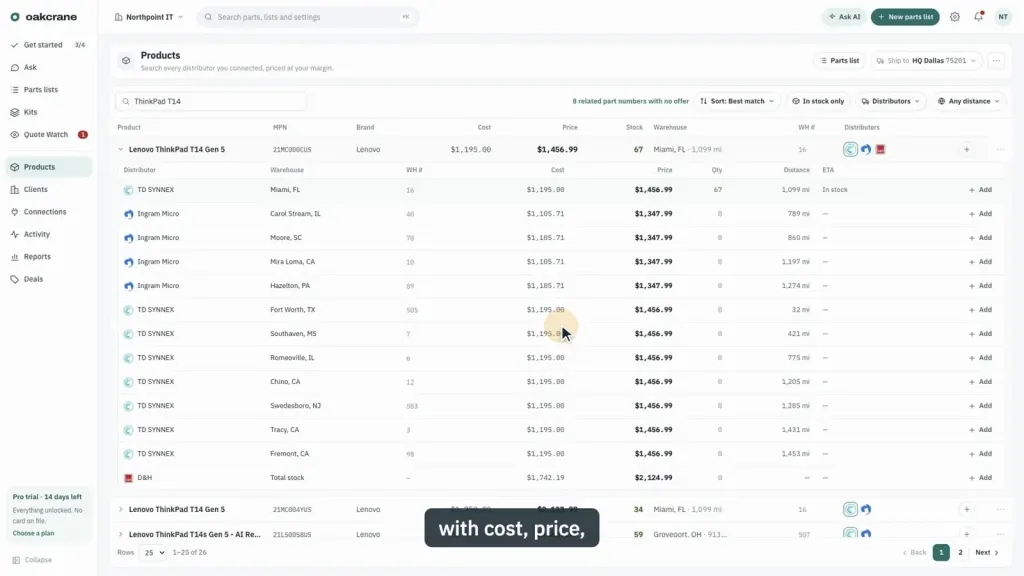
Click the arrow at the start of a row to expand it. You'll see every distributor and warehouse that has the product, with cost, price, quantity, distance and ETA. Click Add on any line to use that exact offer.
4. Filter and sort
Use the controls above the table:
- In stock only hides anything you can't get today.
- Distributors lets you pick which distributors to include.
- Any distance limits results to warehouses within 100, 250, 500 or 1,000 miles (needs a ship-to).
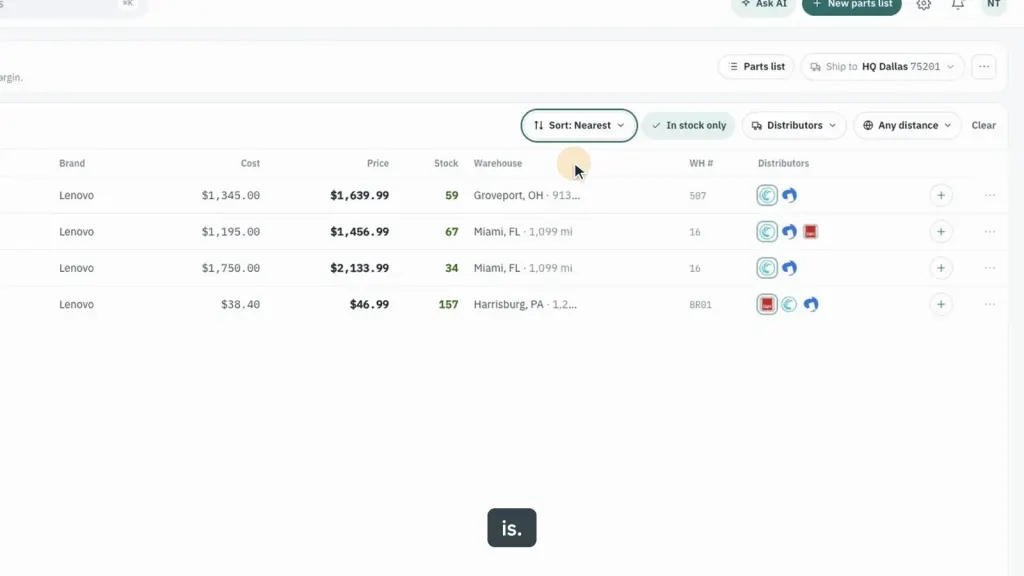
- Sort picks the offer shown for each product: Best match, Cheapest, Nearest, Most stock or Fastest.
Set Ship to in the header to your office or the client site. Then Sort: Nearest picks the closest warehouse that has stock and shows how far away it is. Click Clear to reset filters.
5. Open the product detail
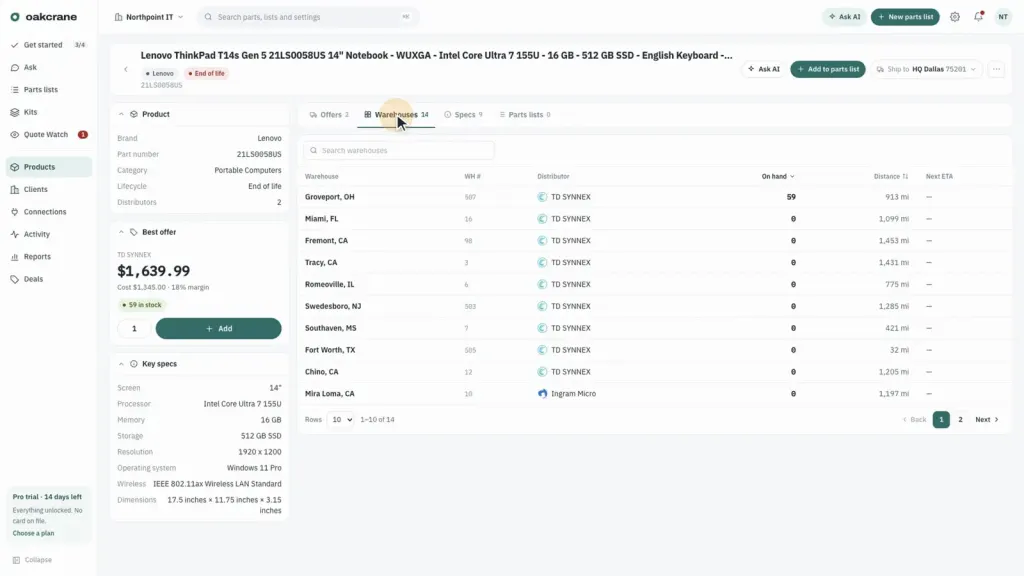
Click a product for the full picture: brand, category and lifecycle (such as End of life), the Best offer with cost and margin, key specs, and tabs for Offers, Warehouses and Specs. The Warehouses tab shows stock and distance for every warehouse.
Set a quantity and click Add, or use Add to parts list at the top.
6. Save it as a parts list
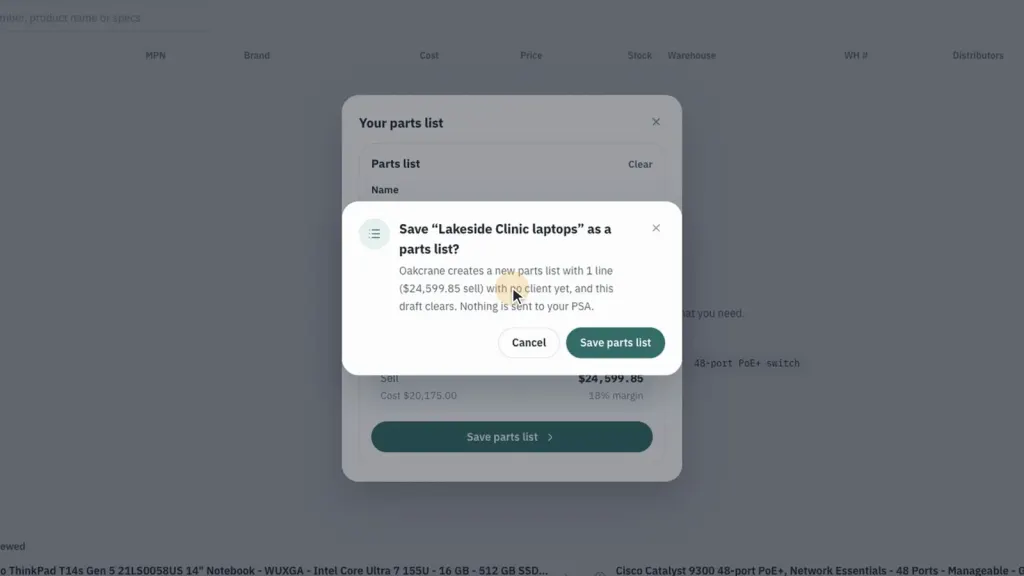
Click Parts list in the header to open Your parts list. Set quantities, give it a Name, pick a Client if you like, and click Save parts list.
A confirm dialog shows the line count and sell total, and reminds you that nothing is sent to your PSA. Click Save parts list again to create it.
Tips
- Nearest is greyed out until you set a ship-to address. Add addresses in Settings, Shipping addresses.
- Every line you add keeps both the cost and your sell price, so margin carries through to the parts list.
Questions
Which distributors does Products search?
Every distributor you have connected: Ingram Micro, TD SYNNEX and D&H. Prices and stock come from your own accounts, so you see your own cost.
How does Oakcrane pick the offer shown on each row?
It follows the sort. Best match prefers offers with enough stock, then the lowest price. Cheapest picks the lowest price first. Nearest prefers stock, then the shortest distance from your ship-to. Every other offer stays in the expanded row.
Where does the sell price come from?
From your margin rules. Hover any price to see the margin and the cost behind it.
Transcript
0:03Products is where you search every distributor at once.
0:06Type a part number, or describe what you need.
0:09Oakcrane asks each connected distributor at the same time, matches the same product across their catalogs, and shows one row per product, priced at your margin.
0:19For each product, it picks the best offer, and keeps the others one click away.
0:27Let's search for a ThinkPad T14.
0:33Each row shows your cost, your sell price, the stock, and the warehouse it ships from.
0:39The logos show which distributors carry it.
0:44Hover a price to see your margin.
0:46Open the arrow to compare every offer: each distributor and warehouse, with cost, price, quantity and distance.
0:58Filters narrow things down.
1:01In stock only hides anything you can't get today, and you can choose which distributors to include.
1:07With a ship to address set, you can sort by nearest.
1:11O 'Krain picks the closest warehouse that has stock, and shows how far away it is.
1:17You can also sort by cheapest, most stock, or fastest.
1:25Click a product for the full picture: key specs, life cycle, the best offer,
1:43and stock at parts list.
1:45Each line keeps the cost and your sell price.
1:48Open the parts list to set quantities, give it a name, and save it.
1:52Then it's ready to send.
2:13You


