
Step by step
1. Re-check prices before a send
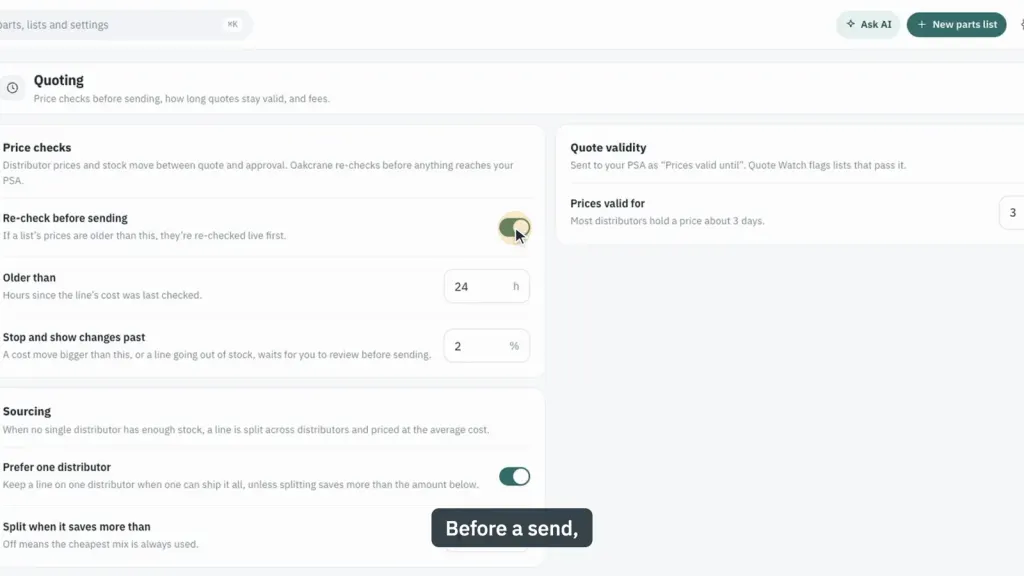
Open Settings, then Quoting under Rules.
- Re-check before sending: when it's on, Oakcrane re-checks prices live before a parts list reaches your PSA.
- Older than: only lines whose cost was last checked more than this many hours ago are re-checked. The default is 24 hours.
- Stop and show changes past: if a cost moved more than this percent, or a line went out of stock, the send stops and shows you the changes first. The default is 2%.
2. Set quote validity
Under Quote validity, set Prices valid for in days. The date goes to your PSA as "Prices valid until". Most distributors hold a price about 3 days, and Quote Watch flags parts lists that pass it.
3. Choose how lines are sourced
When no single distributor has enough stock, a line is split across distributors and priced at the average cost.
- Prefer one distributor keeps a line on one distributor when one can ship it all.
- Split when it saves more than sets how much cheaper, in percent, a split must be before Oakcrane uses it anyway.
Turn Prefer one distributor off to always use the cheapest mix.
4. Add a procurement fee
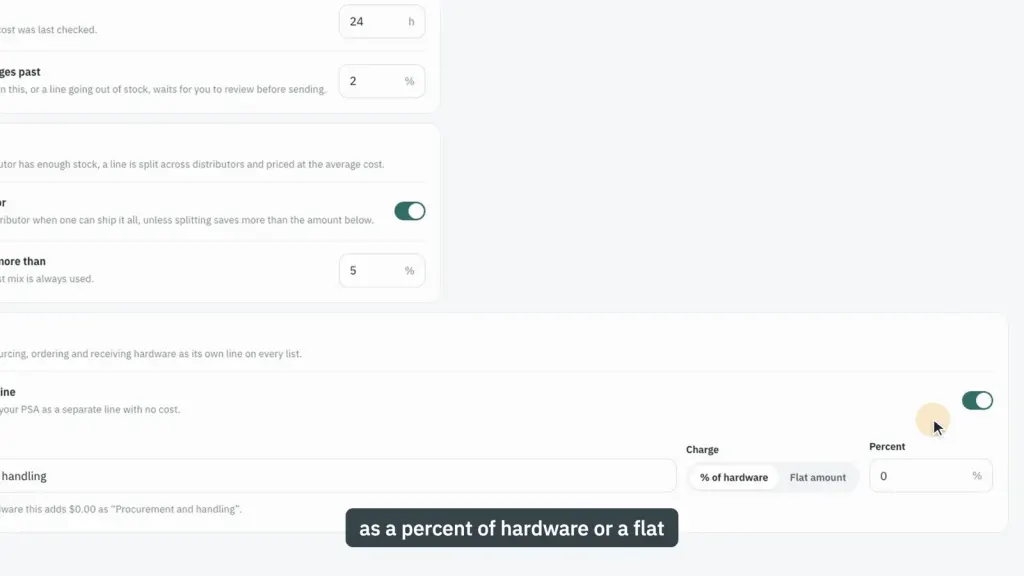
To bill the time spent sourcing, ordering and receiving hardware, turn on Add a procurement line. It's off by default.
Set the Line label, then under Fee type pick % of hardware or Flat amount and type the value. The example under the fields shows what the line will add. It goes to your PSA as a separate line with no cost.
5. Save quoting settings
Click Save. The confirm dialog lists every change and reminds you these apply to every send from now on. Parts lists already sent don't change until they're sent again. Click Save settings to apply.
6. Add a shipping address
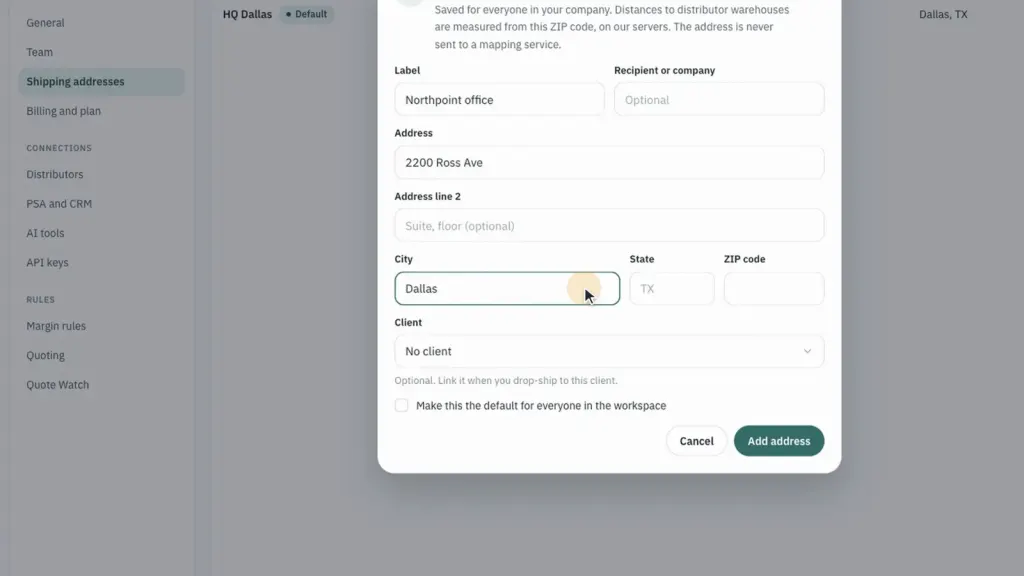
Open Settings, then Shipping addresses under Workspace, and click Add address.
Fill in Label, Address, City, State and ZIP code. Recipient or company and Address line 2 are optional. If you drop-ship to a client, link the address under Client. Click Add address to save.
Addresses are saved for everyone in your company. Distances to distributor warehouses are measured from the ZIP code on Oakcrane's servers, and the address is never sent to a mapping service.
7. Pick the default address
The first address you add becomes the default for everyone. To change it later, open the menu on another address and choose Make default, then confirm. Each person can still pick their own address on the Products page.
8. Sort products by nearest warehouse
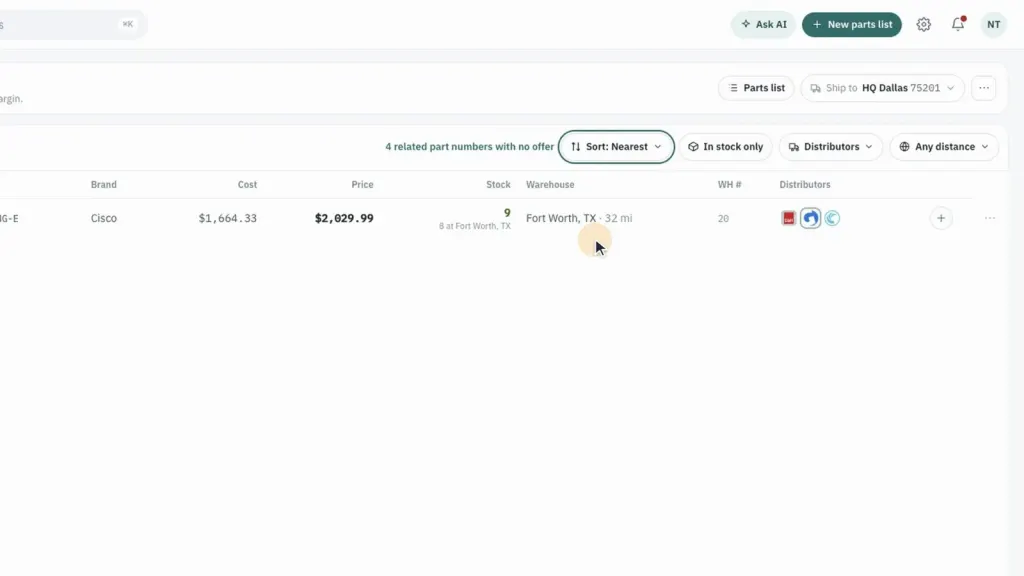
On Products, the Ship to picker at the top shows your address. Click it to choose a different one.
Search for a part, then set Sort to Nearest. Offers from the closest warehouse come first, with the city and distance in miles on each one, for example "Fort Worth, TX · 32 mi".
9. Choose your own emails
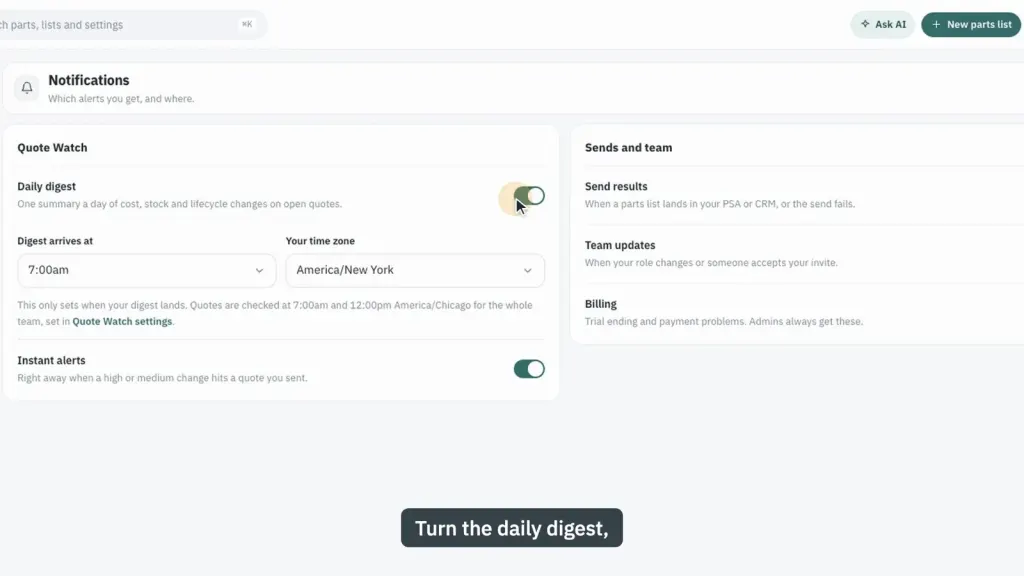
Open Settings, then Notifications under My account. These are your own emails.
Under Quote Watch: - Daily digest: one summary a day of cost, stock and lifecycle changes on open quotes. Use Digest arrives at and Your time zone to choose when it lands. - Instant alerts: right away when a high or medium change hits a quote you sent.
Under Sends and team: - Send results: when a parts list lands in your PSA or CRM, or the send fails. - Team updates: when your role changes or someone accepts your invite.
Billing emails, like a trial ending or a payment problem, always go to admins.
10. Confirm each change
Every switch or time change asks you to confirm, for example Turn off team updates? Only your own emails change. Your teammates keep their settings.
Your digest time doesn't move the team's check times. Those are set in Quote Watch settings.
Tips
- Set quote validity to match what your distributors actually hold. Three days is a safe start.
- Add each client site you drop-ship to as its own address and link it to the client.
- If your digest lands before you start work, move Digest arrives at to your first hour at the desk.
Questions
Do you send our addresses to Google Maps or another mapping service?
No. Distances are measured from the ZIP code on Oakcrane's servers. The address is never sent to a mapping service.
Does the procurement fee change prices on lines?
No. It goes to your PSA as its own line with no cost, as a percent of hardware or a flat amount, on the next send of each list.
If I turn off instant alerts, does it turn them off for my team?
No. Notifications only change your own emails. Teammates keep their settings.
Why did my send stop and show changes?
A cost moved more than your Stop and show changes past percent, or a line went out of stock, since the price was last checked. Review the changes, then send.
Transcript
0:03Three settings decide what happens around a quote.
0:06Quoting covers price checks before a send, how long prices stay valid, and fees.
0:12Ship to addresses tell Oakcrane where your hardware goes.
0:15And notifications decide which emails you get.
0:21Open Settings, then Quoting.
0:23Before a send, Oakcrane re-checks any prices older than the hours you set here.
0:28If a cost moved more than this percent, or a line went out of stock, the send stops and shows you the changes first.
0:36Next, quote validity.
0:38It sets how long your prices stay valid, and that date goes to your PSA.
0:43Most distributors hold a price about three days, and Quote Watch flags lists that pass it.
0:48Prefer one distributor keeps a line together, unless splitting it saves more than this And you can add a procurement fee as its own line, as a percent of hardware or a flat amount.
1:07Next, Shipping addresses.
1:09Add where you ship to.
1:11Distances are measured from the ZIP code on our servers, and the address is never sent to a mapping service.
1:24The first address becomes the default for everyone, and each person can still pick their own.
1:35On Products, the ship to picker shows your address.
1:39Sort by Nearest, and offers from the closest warehouse come first, with the distance on each one.
1:56Finally, Notifications.
1:59These are your own emails.
2:01Turn the daily digest, instant alerts, send results and team updates on or off, and choose when your digest arrives, in your time zone.
2:10Every change asks you to confirm, and only your own emails change.
2:22Your teammates Thanks for watching!


