
Step by step
1. Create an API member in ConnectWise
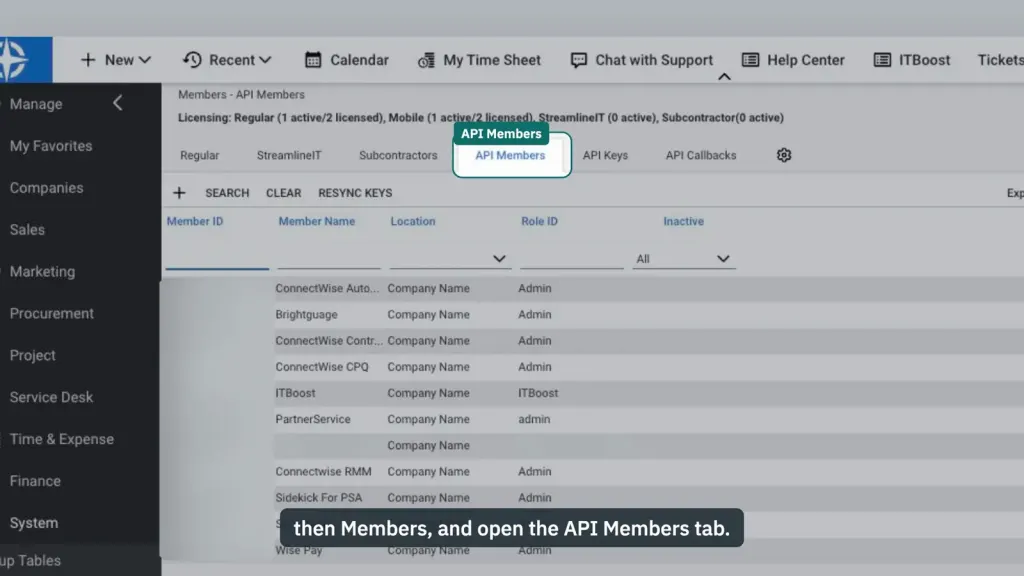
In ConnectWise PSA, go to System, then Members, and open the API Members tab.
Add a new API member and give it a clear name, like Oakcrane. Pick a security role that can read companies and contacts, and create opportunities and products. Save it.
2. Create the API keys
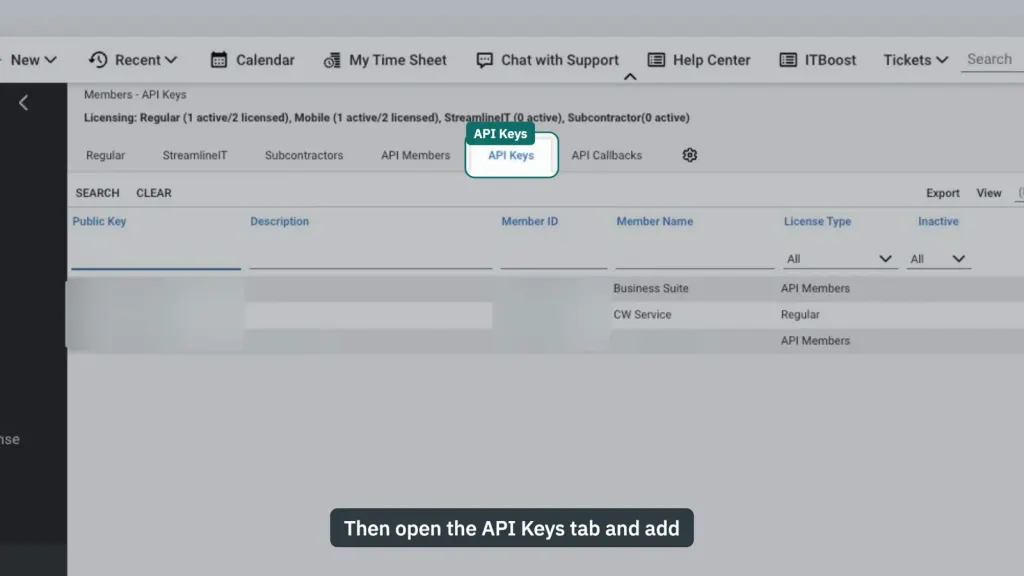
With the API member open, go to the API Keys tab and add a key.
Copy the public key and the private key right away. ConnectWise only shows the private key once. If you lose it, create a new key.
3. Paste the keys into Oakcrane
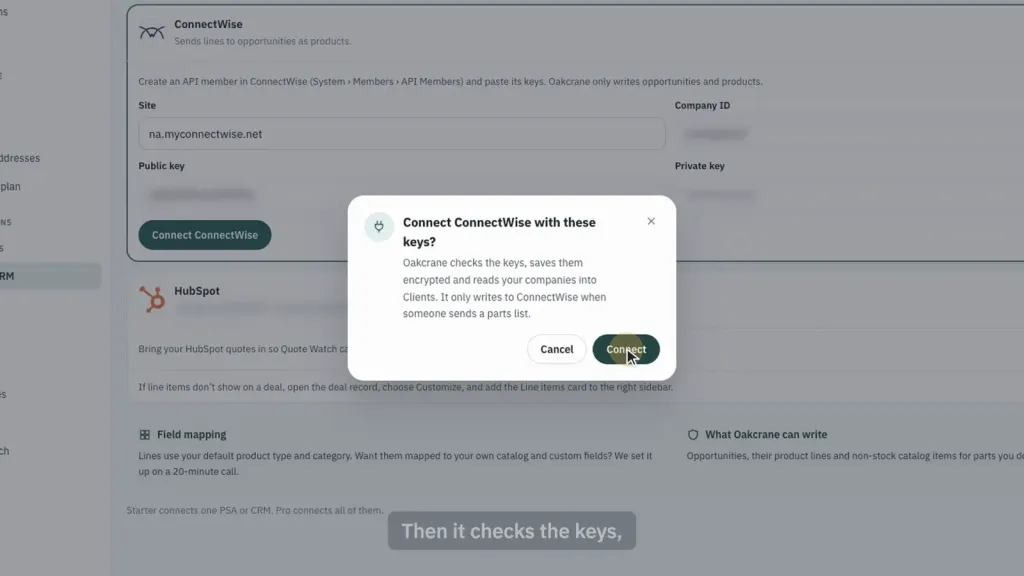
In Oakcrane, open Settings, then PSA and CRM under Connections. On the ConnectWise card, click Connect.
Fill in:
- Site: the address you use to sign in to ConnectWise, for example na.myconnectwise.net
- Company ID: the company you enter on the ConnectWise login screen
- Public key and Private key: from the step above
4. Click Connect ConnectWise and confirm
Click Connect ConnectWise. A dialog asks you to confirm: "Connect ConnectWise with these keys?" Click Connect.
Oakcrane checks the keys, saves them encrypted and reads your companies into Clients. It only writes to ConnectWise when someone sends a parts list.
5. Pick a default opportunity owner
Every ConnectWise opportunity needs a sales rep. If the person sending is a ConnectWise member, matched by email, they become the rep.
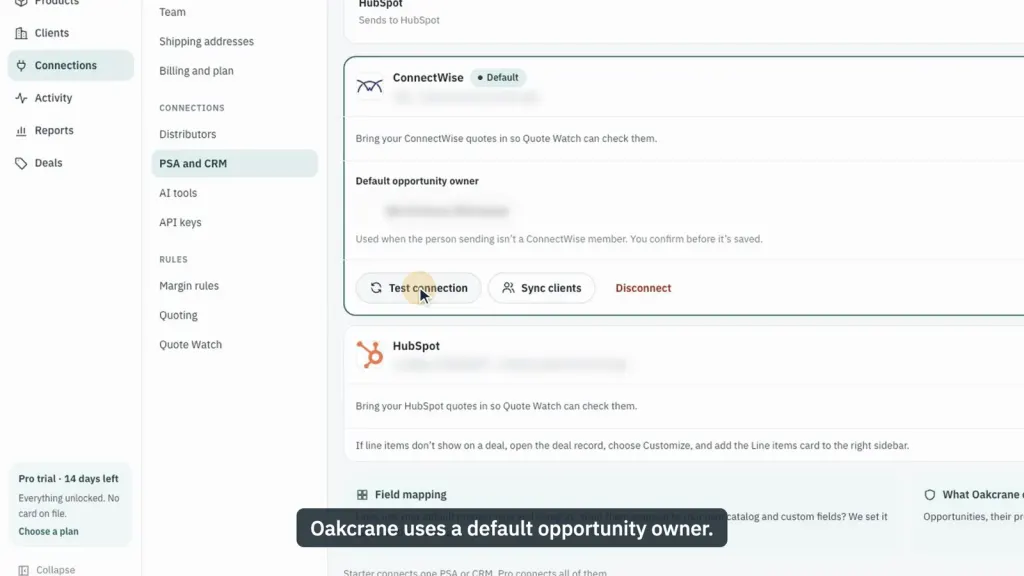
For everyone else, Oakcrane uses a Default opportunity owner. Click Manage on the ConnectWise card, pick a member, and confirm before it's saved. Until you pick one, sends from people who aren't ConnectWise members will fail.
The card also has Test connection (reads a record to check the keys still work) and Sync clients (re-reads your companies). Both ask you to confirm and change nothing in ConnectWise.
6. Send a parts list
On a parts list, click Send to ConnectWise. Pick the ConnectWise client, then choose Create a new opportunity or one of its open opportunities.
A new opportunity also needs a Contact. Pick one of the company's contacts. If the company has none, add one with a first name and email (last name is optional). It is saved to that company in ConnectWise after you confirm. If you can manage connections, you can also set the Opportunity owner for this send.
Click Review send to see exactly what will be written, then confirm.
7. What a send creates in ConnectWise
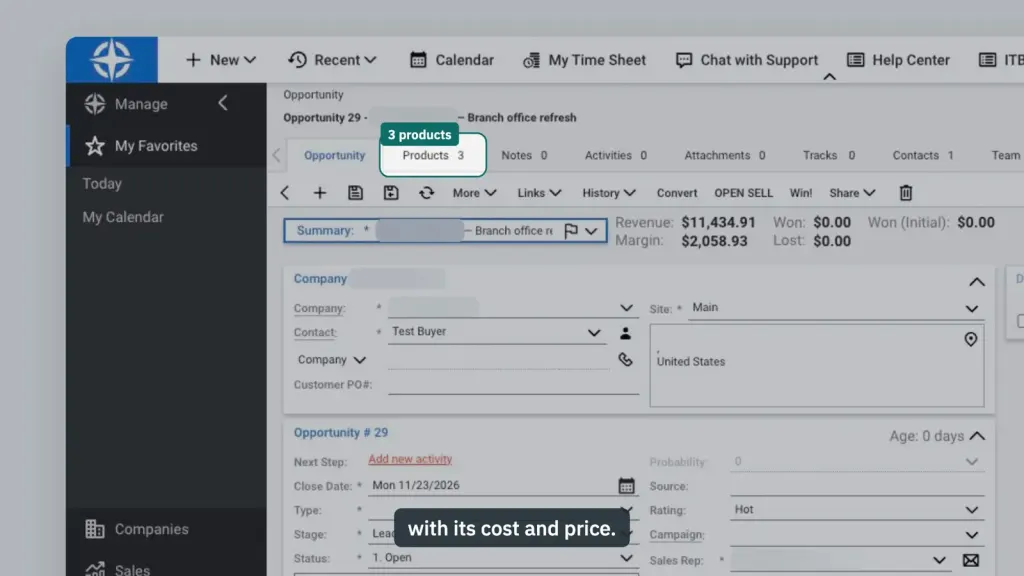
A new opportunity for that company, with the contact and the sales rep. Every line is added as a product with its cost and price.
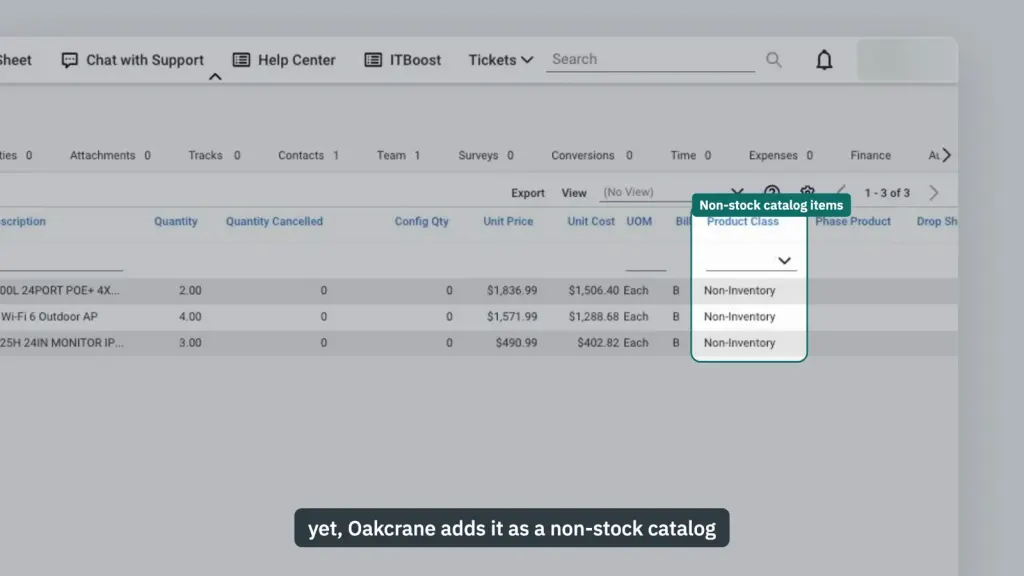
If a part isn't in your ConnectWise catalog yet, Oakcrane adds it as a non-stock catalog item.
8. Changes sync back
The opportunity stays linked to the parts list. Changes made in ConnectWise, like a quantity edit, sync back into Oakcrane on their own. If the same line changed in both places, you review the conflict and choose which to keep.
Tips
- Name the API member Oakcrane so it's easy to spot in ConnectWise audit trails.
- Want lines mapped to your own product types, categories or custom fields? By default lines use your default product type and category. We can set up mapping on a 20-minute call.
- The Starter plan connects one PSA or CRM. Pro connects all of them.
Questions
What can Oakcrane write to ConnectWise?
Opportunities, their product lines, non-stock catalog items for parts you don't carry yet, and a contact if you add one while sending. It writes when someone sends a parts list or applies a Quote Watch fix, or on its own only if you turn on automatic mode.
Why did my send fail with a sales rep or owner error?
ConnectWise needs a sales rep on every opportunity. If the sender isn't a ConnectWise member, set a Default opportunity owner under Settings, PSA and CRM, Manage.
Which security role should the API member have?
One that can read companies and contacts, and create opportunities and products. You can create a dedicated Oakcrane security role with just those rights and assign it to the API member.
I lost the private key. What now?
ConnectWise only shows it once. Add a new key on the API member's API Keys tab, then open the ConnectWise card in Oakcrane and paste the new keys.
Transcript
0:02This video connects ConnectWise to Oakcrane.
0:06When you're done, a priced parts list becomes a ConnectWise opportunity in one send.
0:11Oakcrane reads your companies and contacts.
0:14It only writes to ConnectWise when you send a parts list, and you see a preview first.
0:22Start in ConnectWise.
0:24Go to System, then Members, and open the API Members tab.
0:29Add a new API member and give it a clear name, like Oakcrane.
0:33Pick a role that can read companies and contacts, and create opportunities and products.
0:39Save it.
0:41Then open the API Keys tab and add a key.
0:44Copy the public key and the private key right away.
0:48ConnectWise only shows the private key once.
0:53Now in Oakcrane, open Settings, then PSA and CRM.
0:58On the ConnectWise card, choose Connect.
1:02Enter your site, the address you use to sign in to ConnectWise.
1:06Then your company ID, and the public and private keys.
1:16Choose Connect ConnectWise.
1:17Oakcrane asks you to confirm.
1:20Then it checks the keys, saves them encrypted, and reads your companies into Clients.
1:26Every ConnectWise opportunity needs a sales rep.
1:29If the person sending is a ConnectWise member, matched by email, they become the rep.
1:34For everyone else, Oakcrane uses a default opportunity owner.
1:39Pick one under Manage.
1:40You confirm before it's saved.
1:45Opportunities also need a contact.
1:47When you send, pick one of the company's contacts, or add a new one with a name and email.
1:52It's saved to that company in ConnectWise.
1:55So what does a send create?
1:58A new opportunity for that company, with the contact and the sales rep.
2:03Every line is added as a product, with its cost and price.
2:08If a part isn't in your ConnectWise catalog yet, Oakcrane adds it as a non-stock catalog item.
2:15It doesn't write anything else.
2:17The opportunity stays linked to the parts list.
2:21Changes made in ConnectWise sync back into Oakcrane, and you review any conflicts.
2:27That's ConnectWise, connected.


