
Step by step
1. Open the Team page
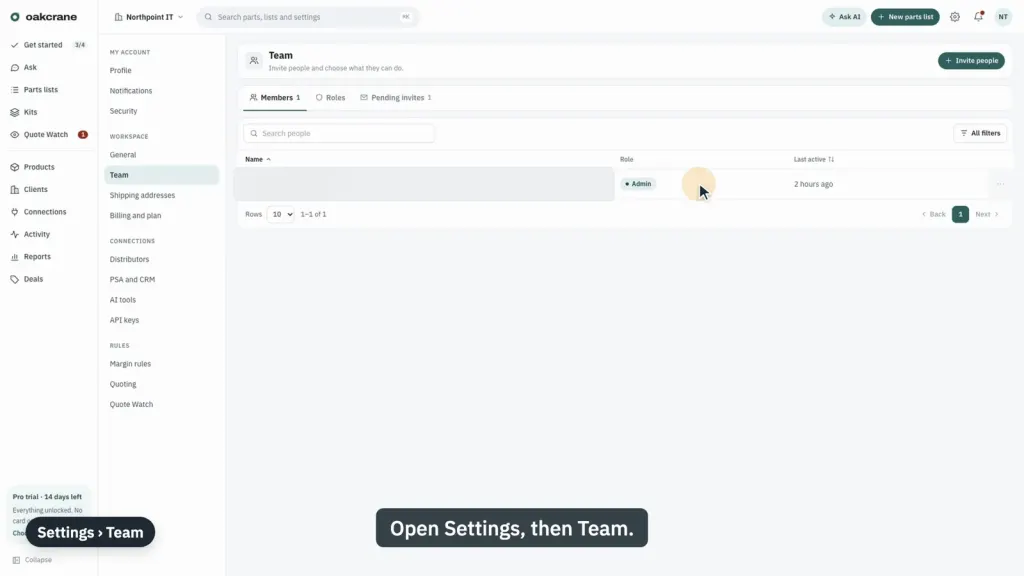
Click the gear icon at the top right, or open your profile menu and pick Settings. Then click Team under Workspace.
The Members tab lists everyone in your company with their role and when they were last active. To change someone's role or remove them, use the menu at the end of their row. Both ask you to confirm first.
2. Invite people
Click Invite people. The dialog names the company they're joining in bold, so you always invite into the right one.
- Under Emails, add one or more work emails. Separate them with commas or new lines.
- Under Role, pick Admin, Account manager, Purchasing or Read only.
- Click Review invites.
The review step shows exactly who joins and as what before anything is sent. Click Send invite (or Send 2 invites, and so on) to send them, or Back to make changes. Every plan has unlimited users.
3. Choose what each role can do
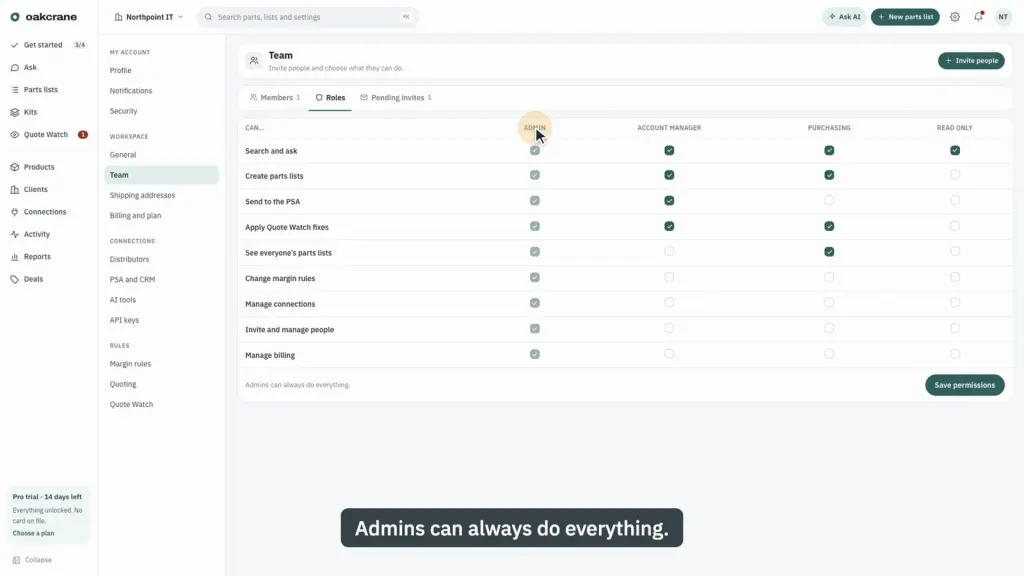
Open the Roles tab. Each row is a permission and each column is a role:
- Search and ask
- Create parts lists
- Send to the PSA
- Apply Quote Watch fixes
- See everyone's parts lists
- Change margin rules
- Manage connections
- Invite and manage people
- Manage billing
Admins can always do everything. For the other roles, tick or untick a box to change what they can do.
4. Save and confirm permission changes
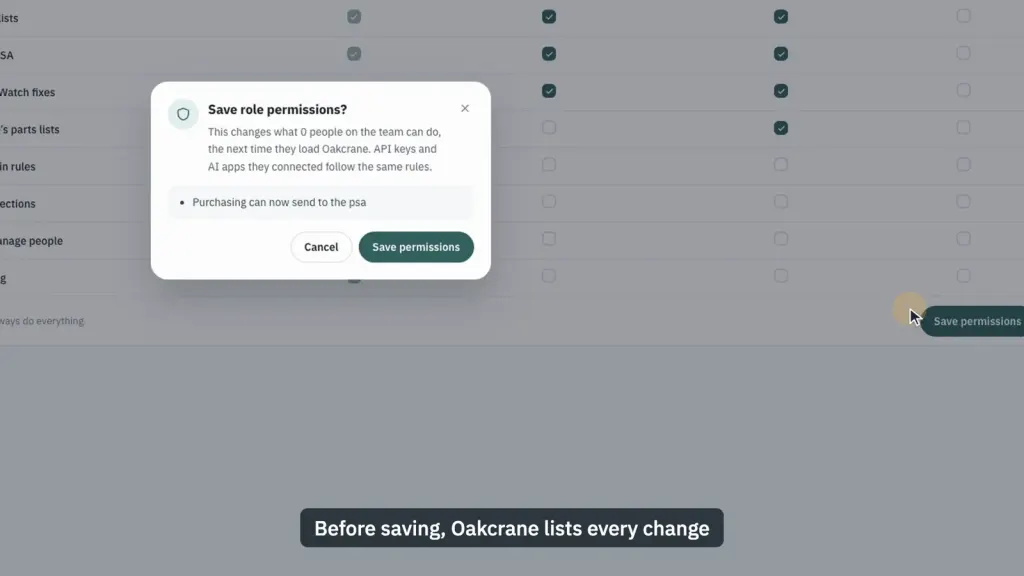
Click Save permissions. Oakcrane lists every change, for example "Purchasing can no longer send to the PSA", and how many people it affects.
Click Save permissions in the dialog to apply it. Changes take effect the next time each person loads Oakcrane. API keys and AI apps they connected follow the same rules.
5. Manage pending invites
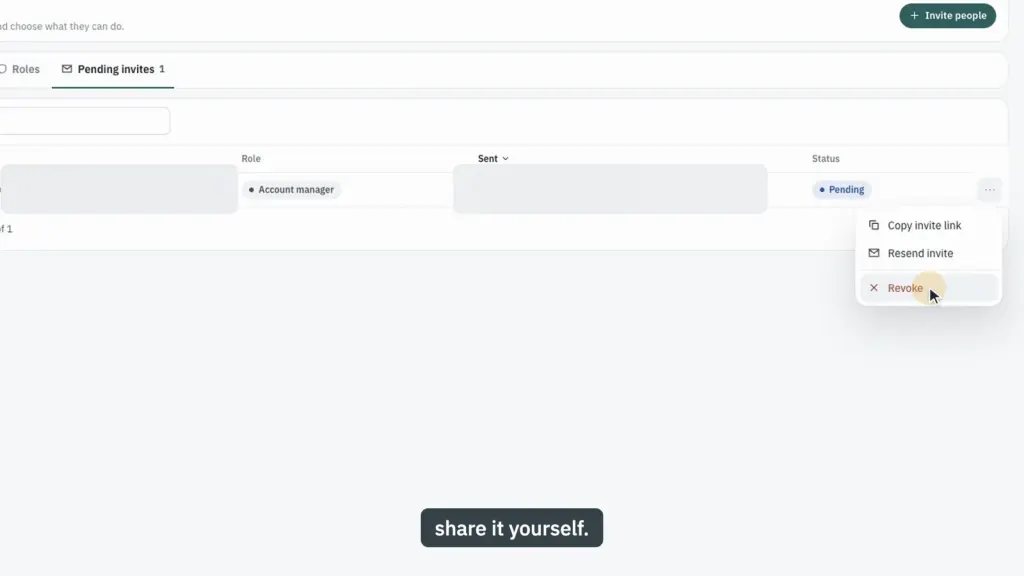
Invites last 7 days. The Pending invites tab shows each one with its role and status. Use the menu at the end of a row to:
- Copy invite link: makes a fresh link you can share yourself. The link in the earlier email stops working.
- Resend invite: emails a fresh link that lasts 7 days.
- Revoke: stops the invite link right away.
Each of these asks you to confirm first. Only the invited email can accept an invite, even if the link is shared.
6. How new people sign in
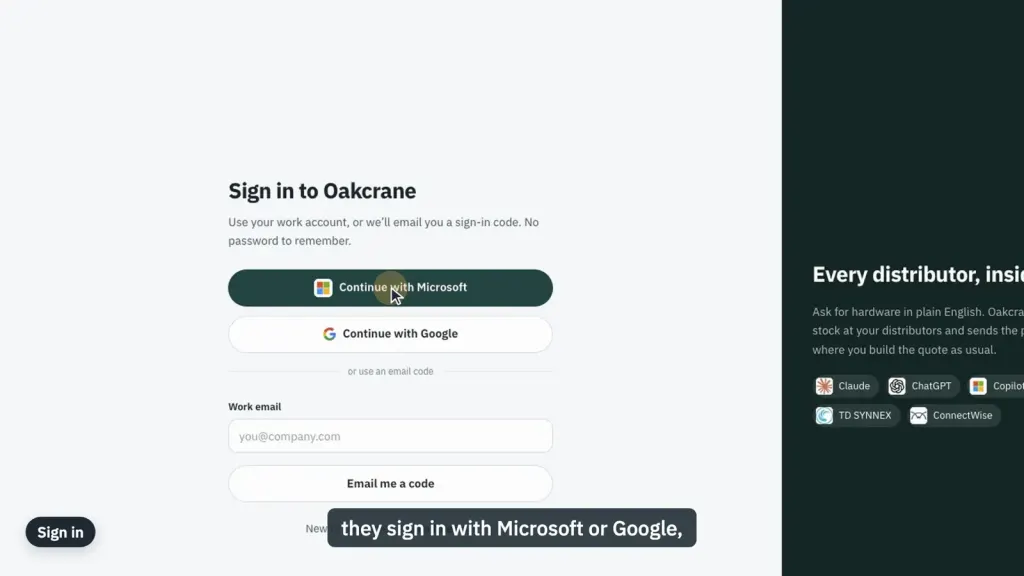
When someone accepts, they sign in with Continue with Microsoft or Continue with Google, or type their work email and click Email me a code. There's no password to remember.
7. Work with more than one company
Click the company name at the top left to open the company switcher. It lists every company you belong to and your role in each. Pick one to switch to it.
Each company has its own team, connections and parts lists. Click Create company in the same menu to add a new one.
Tips
- Give your purchasing team the Purchasing role and leave Send to the PSA off if only account managers should create opportunities.
- Use Read only for people who need to look up price and stock but shouldn't change anything.
- If an invite email gets lost, use Copy invite link and send it over Teams or Slack.
Questions
Does adding users cost extra?
No. Every plan includes unlimited users.
Can I change what an account manager can do?
Yes. Open Settings, Team, Roles, tick or untick the permissions, then click Save permissions. Only the Admin column is fixed.
What happens to someone's parts lists if I remove them?
They lose access to the company right away. Their parts lists stay with the team.
Can a teammate accept an invite meant for someone else?
No. Only the email address the invite was sent to can accept it.
Transcript
0:03Oakcrane is built for your whole team.
0:06Everyone works in one company workspace, with the same connections, parts lists and rules.
0:12Each person gets a role, and the role decides what they can do.
0:16Admin, account manager, purchasing, or read-only.
0:22Open Settings, then Team.
0:25Here's everyone in your company, and their role.
0:28To add someone, click Invite people.
0:31The dialog names the company they're joining in bold, so you always invite into the right one.
0:36Add one or more work emails, then pick a role.
0:39Every plan has unlimited users.
0:42Review invites shows exactly who joins, and as what, before anything is sent.
0:48We'll go back and cancel this one.
0:53The Roles tab shows what each role can do.
0:55Admins can always do everything.
0:59For the other roles, tick or untick a permission, like sending to the PSA, or changing margin rules.
1:06Before saving, Oakcrane lists every change and how many people it affects.
1:17Invites last seven days.
1:20Under Pending invites you can resend one, revoke it, or copy the invite link and share it yourself.
1:26Only that email can accept it.
1:39Work with more than one company?
1:41Use the company switcher at the top.
1:44Each company has its own team, connections and parts lists, and Create company adds a new one.
1:51When they join, they sign in with Microsoft or Google or with a code sent to their email.
1:56There's no password to remember.
1:59That's your team, set up.


